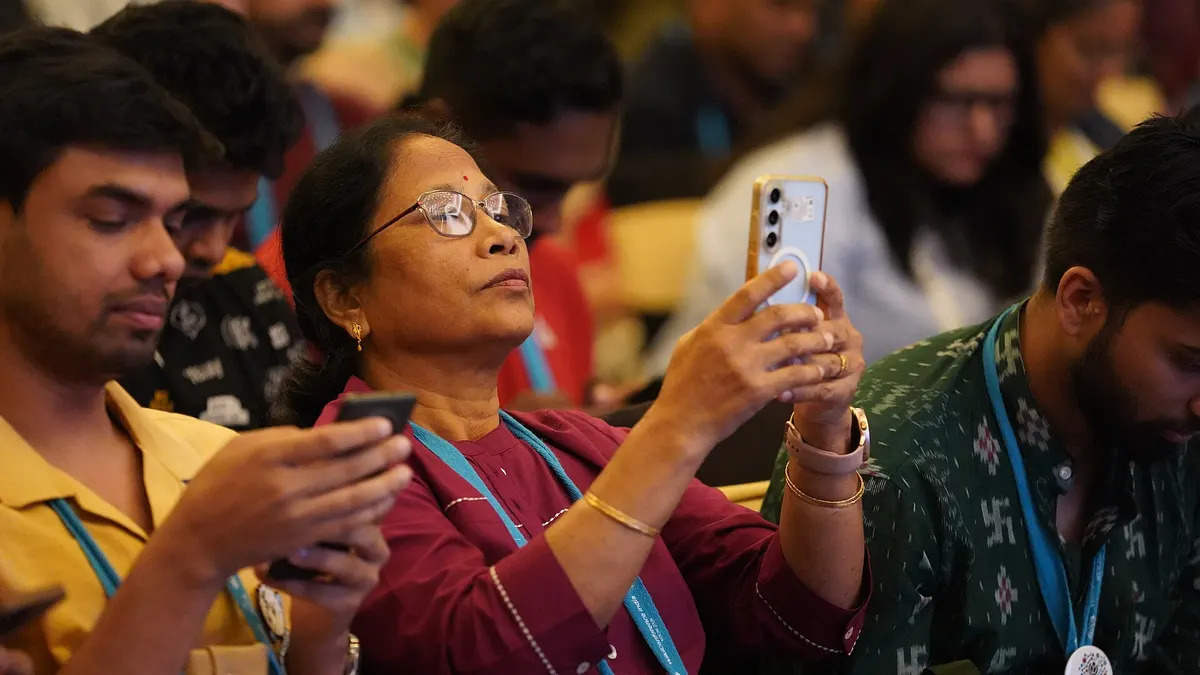
You do not need a special app to read a QR code. Every recent iPhone and almost every Android phone can do it with the camera that is already on the phone. This guide covers how to scan a QR code on an iPhone, a Google Pixel, a Samsung Galaxy and other Android phones, how to read a code that is inside a screenshot or photo, and what to try when nothing happens. The steps follow Apple's, Google's and Samsung's own help pages, which are linked so you can check the wording for your phone.
The quick answer
Open your camera, point it at the code so the whole square is on screen, and tap the link that pops up. You do not have to take a photo. If that does not work, use the phone's built-in scanner button instead:
| Phone | Easiest way | Backup way |
|---|---|---|
| iPhone | Camera app, Photo mode, tap the link at the bottom | Scan Code button in Control Center |
| Google Pixel | Camera app, tap the link bubble | Scan QR code tile in Quick Settings |
| Samsung Galaxy | Camera app, Photo mode, tap the pop-up | Scan QR code icon in the Quick settings panel |
| Other Android phones | Camera app, if it supports scanning | Google Lens in the Google app |
How to scan a QR code on an iPhone
With the Camera app
Apple's guide Scan a QR code with your iPhone camera lists three steps:
- Open Camera. From the Home Screen, the Lock Screen or Control Center.
- Stay in Photo mode and hold the iPhone so the code appears inside the camera frame.
- Tap the link that appears at the bottom of the screen.
On models with a Camera Control button, Apple notes you can also use that button to scan codes.
With the Scan Code button in Control Center
The dedicated scanner opens straight into a full-screen viewfinder and has a flashlight button, which helps in a dim restaurant or a car park at night. Swipe down from the top-right corner to open Control Center and tap Scan Code. If it is not there, Apple's article Scan a QR code with your iPhone or iPad explains how to add it: open Control Center, touch and hold the background, tap Add a Control, then tap Scan Code in the gallery. On older iOS versions the same control was called Code Scanner and was added from Settings > Control Center.
How to scan a QR code on Android
Android phones come from many makers, so the menus differ a little. The two methods below cover most phones.
Google Pixel
According to Google's page Scan QR codes with your Pixel phone:
- Open the Camera app and point it at the code, with the entire code on screen.
- Wait a moment. The camera shows a bubble or link; tap it to open.
- If nothing appears, go to the camera's Settings > More settings and make sure Camera scan suggestions is turned on.
The second route is Quick Settings: swipe down from the top of the screen and tap Scan QR code. If the tile is missing, swipe left for more tiles or tap the pencil icon to add it.
Samsung Galaxy
Samsung's guide Ways to scan a QR code on your Galaxy phone or tablet gives two options:
- Camera app. Open Camera, make sure PHOTO is selected and point it at the code. If it won't scan, tap the Settings icon inside the Camera app and turn on Scan QR codes.
- Quick settings panel. Swipe down with two fingers from the top of the screen and tap Scan QR code. The scanner window also has a flashlight button and a shortcut to the Gallery.
Any Android phone: Google Lens
If your camera app has no scanning option, open the Google app (or Chrome), tap the Lens icon in the search bar and point the camera at the code. Google's help page Search with an image on Google describes this Lens button. The Google app is also available for iPhone, so the same trick works there.
Try it on a real code
Want to check that your phone works before you need it at a counter or a gate? Point your camera at the code in the screenshot below, right on your computer screen. It is a static code made with the QR code for restaurant menus generator, and it opens example.com/menu, a harmless placeholder address reserved for examples.
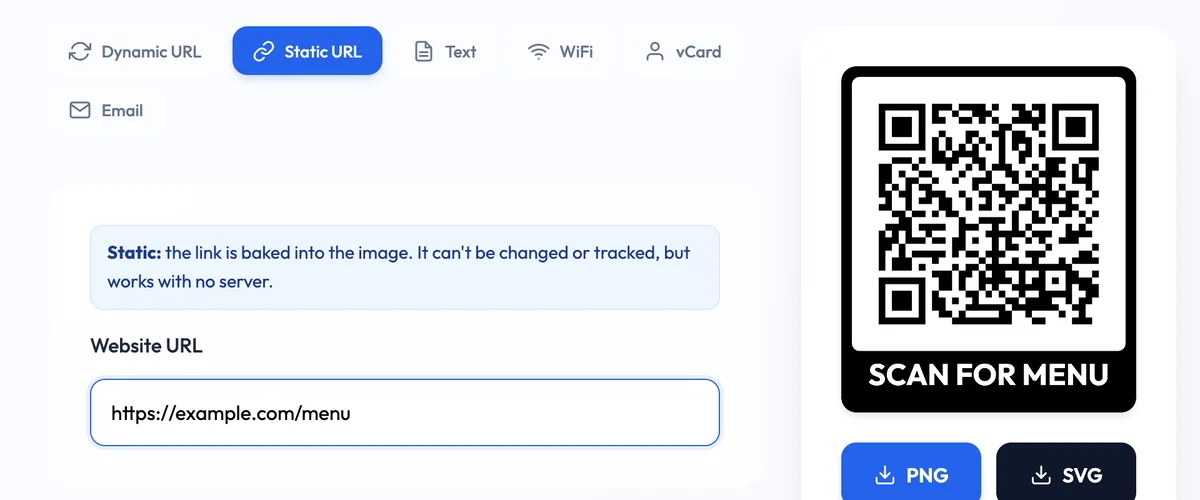
If your phone shows example.com in the preview, it is ready. Notice that it shows the address before opening it: that preview is the most useful habit to build, as the next sections explain.
How to scan a QR code from a screenshot or photo
Sometimes the code is on your own screen: in an email, a PDF ticket, or a picture a friend sent. You cannot point your camera at its own screen, so use one of these:
- Android, any app on screen. On phones that support Circle to Search (Google lists Pixel 6 and later among them), touch and hold the Home button or navigation handle, then circle or tap the code. Results appear in the lower half of the screen.
- Android, a saved image. Open it in Google Photos and choose Google Lens, as described in Google's Google Photos help. On a Samsung phone you can also open the image in the Gallery app and tap the Bixby Vision button.
- iPhone, a saved image. Recent iOS versions can recognise the link in a code inside a photo: open the picture in Photos and touch and hold the code, or tap the Live Text button if it appears. If your version does not offer that, the Google app's Lens button can read the code from your photo library.
- A computer screen. If the code is on your laptop, simply scan it with your phone camera, as with the example above.
Point, wait for the preview, read the address, then tap. Your phone's built-in camera does everything a QR scanner app does, so there is rarely a reason to install one.
QR code not scanning? Try these fixes
Most failed scans come down to light, distance or a setting. Work down this list:
- Get the whole code in the frame. All three corner squares must be visible. Step back if the code fills more than the screen.
- Hold steady and give it a second. The camera needs to focus first. Google's Pixel guide also suggests wiping a smudged lens.
- Fix the light. Turn on the flashlight from the scanner button, or tilt the phone to remove glare from glossy menus and screens.
- Check the setting. Turn on Camera scan suggestions (Pixel) or Scan QR codes (Samsung camera settings). On an iPhone, try the Scan Code button instead of the Camera.
- Try another method. If the camera ignores the code, Google Lens often reads codes that the camera skips.
- Accept that some codes are broken. A code that is printed too small, low in contrast, crumpled or partly covered may not scan on any phone. That is a problem for the person who printed it, not your phone.
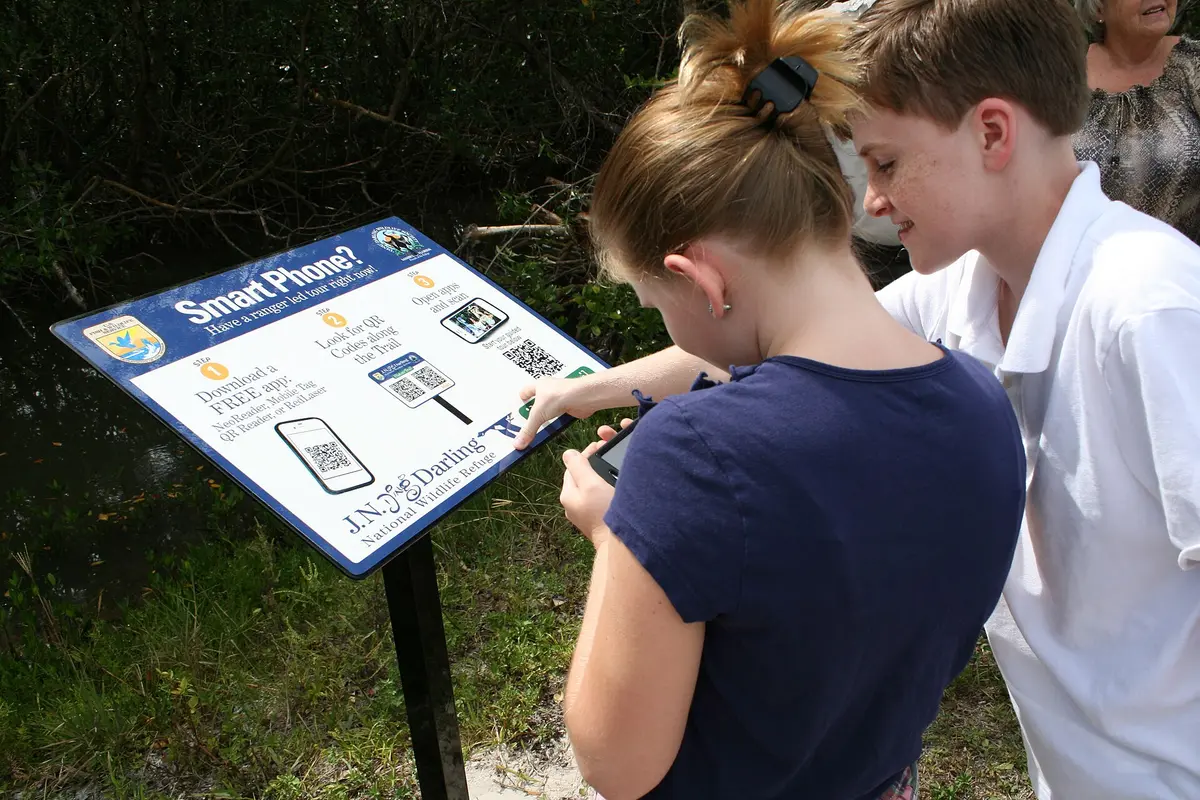
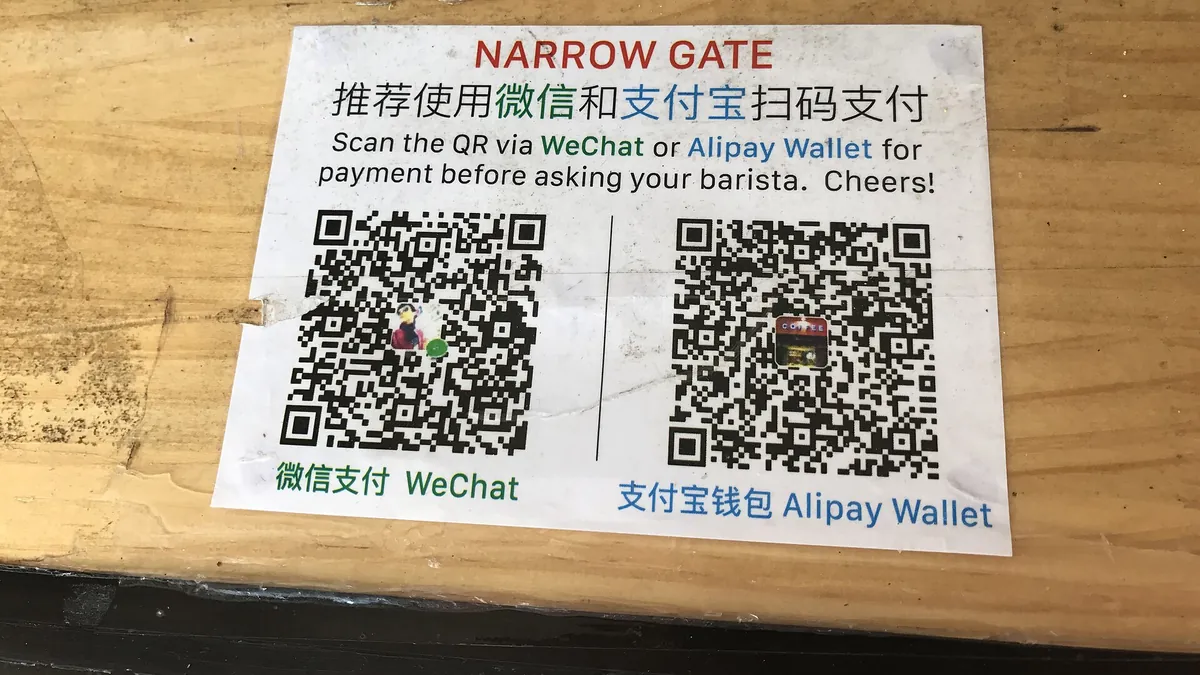
Outdoor signs like the one above are a typical hard case: bright sun, reflections and a code viewed at an angle. Move so the code faces you squarely and shade the screen with your hand.
Check the link before you tap
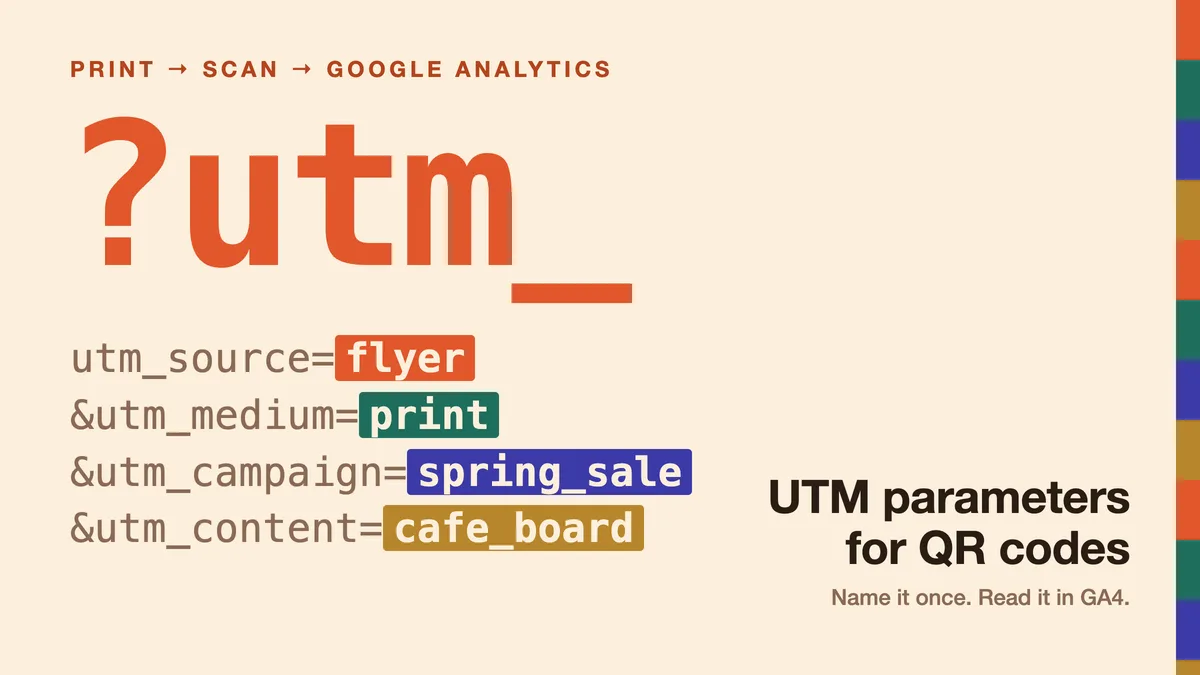
Scanning only reads the code; nothing opens until you tap. Use that pause. Look at the domain in the preview and make sure it matches the place you expect, especially on parking machines, payment signs and codes that arrive by email or text. Our guide to QR code security and QR scams shows the red flags to look for and what to do if you already opened a suspicious link.
Making QR codes that are easy to scan
If you are on the other side, printing codes for customers or guests, a few choices make every phone's job easier:
- Say what the code does. A frame such as "Scan for menu" or "Scan to check in" tells people what they will get and that it is meant to be scanned.
- Print it big enough for the distance people will stand from it; our QR code size guide has the numbers.
- Test it on an iPhone and an Android phone before printing a whole batch.
- Use a dynamic code for anything that changes. A restaurant menu QR code or a QR code for event check-in keeps working when the menu or the check-in form moves, because you change the link without reprinting.
You can make one now with the free dynamic QR code generator: it adds a call-to-action frame, downloads as PNG or SVG, and shows you how many people scanned it.
Cover photo: "Jyoti Chiring Scanning The QR Code Using Her Mobile Phone" by Gangulybiswarup, Wikimedia Commons, CC BY 4.0. Sign photo: "QR codes at Ding Darling Refuge" by U.S. Fish and Wildlife Service, Wikimedia Commons, public domain.