Most happy customers will leave a review if it takes less than a minute. What stops them is the search: open Maps, type the business name, pick the right listing, find the review button. A QR code for Google reviews removes all of that. One scan opens the box where they tap the stars and write a few words. This guide shows how to copy your review link from Google Business Profile, turn it into a QR code you can edit after printing, where to put it, and how to ask without breaking Google's rules.
What you need before you start
- Access to the Business Profile. You need to be able to manage the business on Google. If someone else set it up, ask them to add you.
- A computer. Google's help page says the review QR code can only be generated in a computer browser, not on a phone. Copying the link is easiest on a computer too.
- Your phone, for testing. You will scan the finished code yourself before anything gets printed.
Step 1: Copy your Google review link
Google calls this feature "Get more reviews". Its steps, from the Business Profile help page Create a Google link or QR code to request reviews, are:
- Go to your Business Profile at business.google.com and sign in.
- Select Read Reviews, then Get more reviews (the share icon).
- Select the copy icon to copy the review link. You will also see a ready-made QR code there. You can save it by right-clicking it and choosing "Save image as".
Paste the link into a note and open it on your phone. It should open your business's review form, not just the Maps listing. Google's Tips to get more reviews page also points out that customers must be signed in to a Google Account to post a review, so don't worry if your test asks you to sign in. That is normal.
Step 2: Turn the link into a dynamic QR code
Google's own QR code works, so why make another? It is a fixed code: the review link is written straight into the pattern. If the link ever changes, every sticker and receipt you printed points to the old one. A dynamic code holds a short redirect address instead, and you decide where it goes. Here is how to make one with the Google review QR code generator:
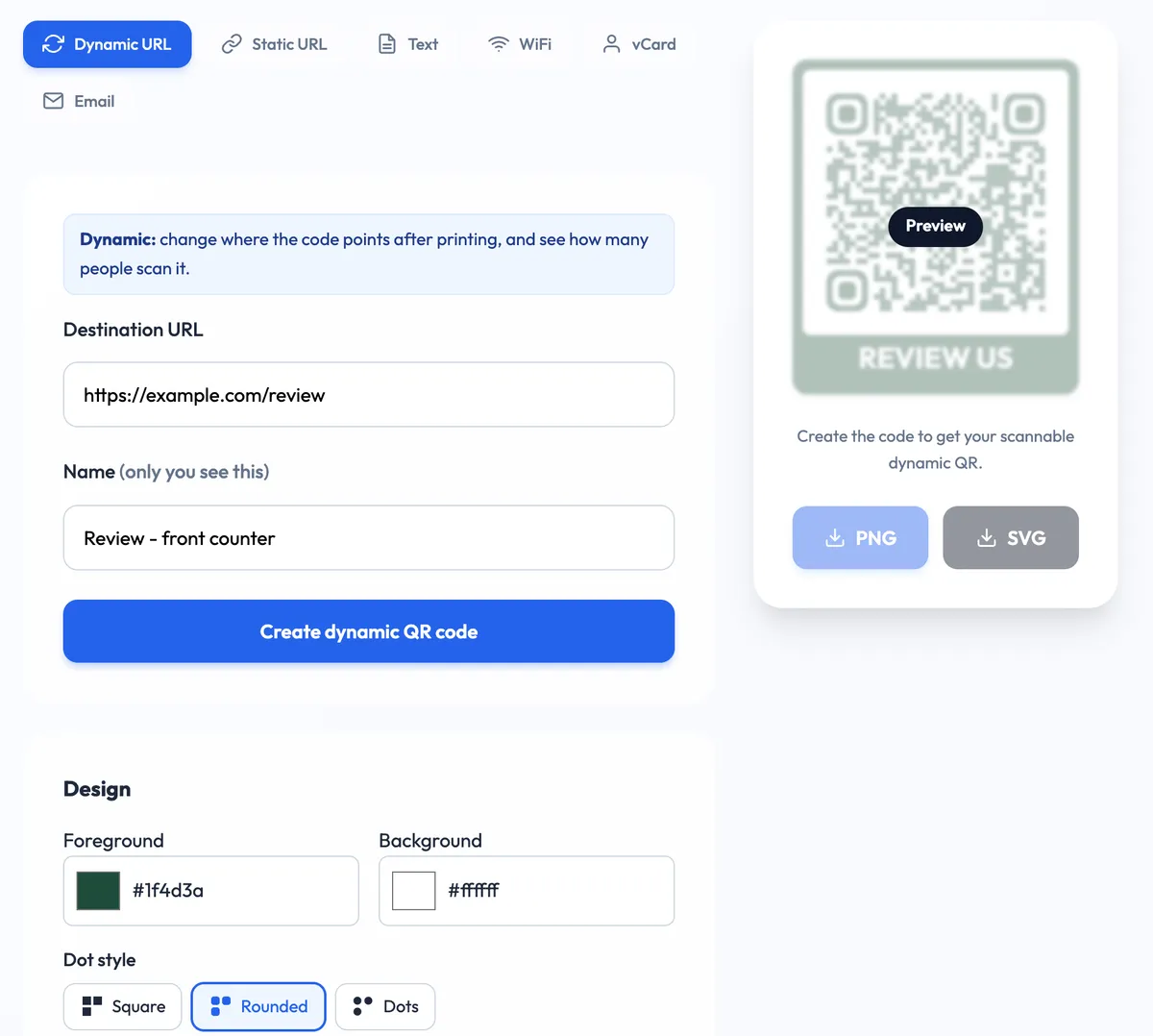
- Keep the Dynamic URL tab selected and paste your review link into Destination URL.
- Give the code a name for where it will live, such as "Review - front counter" or "Review - receipts". Only you see the name, and it keeps your stats readable later.
- Pick colours, dot and corner styles, and keep the frame text. The page already suggests REVIEW US, and you can change it.
- Click Create dynamic QR code, then download a PNG for quick printing or an SVG for a print shop.
- Save the private manage link it gives you. That link is how you edit, pause or check the code later. If you sign in with a free account, your codes are saved there as well.
Below, a fictional café, Juniper Lane Coffee, sets up a code for its front counter. The destination is a placeholder link; yours will be the one you copied from Google.
Google's QR code vs a dynamic QR code
Both open the same review form. The difference shows up months later.
| QR code from Google | Dynamic QR code | |
|---|---|---|
| Cost | Free | Free on Dynamic QR Tool |
| Change the link after printing | No, you reprint | Yes, from the manage page |
| Scan counts | No | Scans, unique visitors, days and hours, devices |
| Separate code per spot | One code for everything | As many as you like, each with its own stats |
| Pause it | No | Yes, without removing the print |
| Design | Plain code | Colours, rounded dots, logo, call-to-action frame |
If you only want a single sign by the till and never plan to change anything, Google's code is fine. If you print in bulk, use several placements or like to know what's working, use a dynamic one. Our guide on changing a QR code link after printing explains how the redirect works.
Step 3: Print it where people have a spare minute
A review request works best right after a good experience and while the customer is waiting anyway. Good spots:
- Receipts. People are already holding them. Add one line such as "Enjoyed your visit? Scan to leave a review."
- A stand by the card reader. Customers wait a few seconds there for the payment to go through.
- Takeaway bags and delivery boxes. A small thank-you card reaches people once they have tasted the food.
- The back of a business card. This suits trades and services, where the job ends at the customer's door.
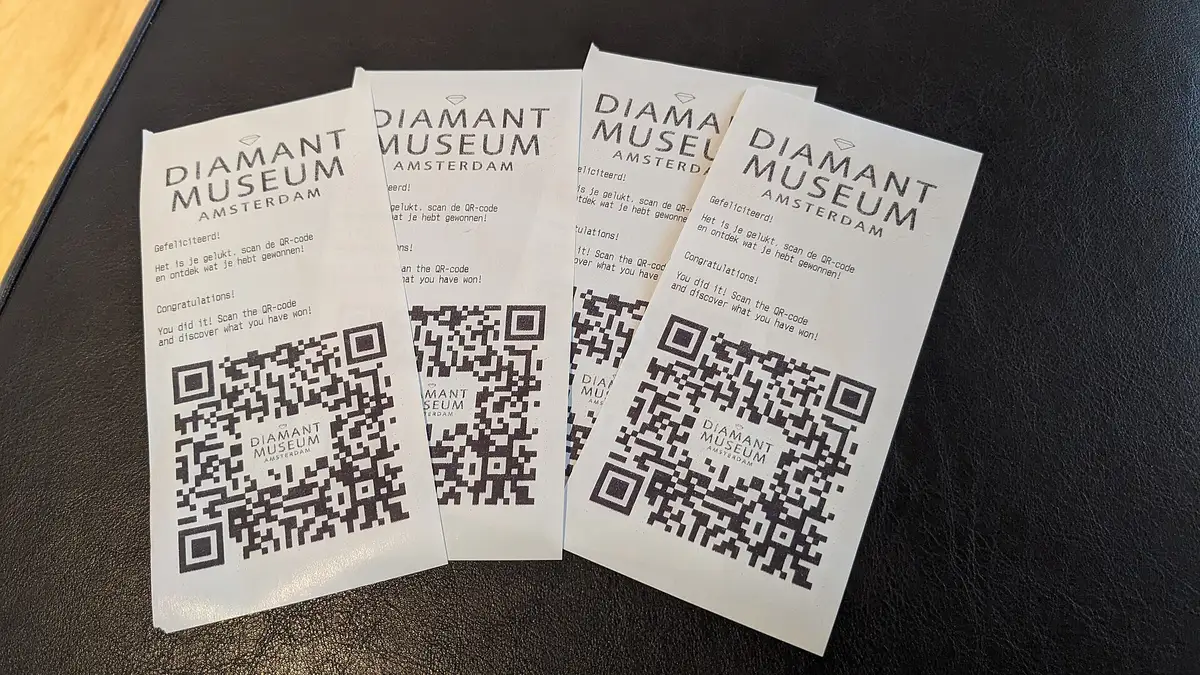
For size, a code held in the hand, like one on a receipt or card, can be about 2 cm (0.8 in) wide. A counter sign read from a step away needs to be bigger, about 4 to 5 cm. The QR code size guide has the distance rule for larger signs. Keep the code dark on a light background with a clear margin around it. Then scan a printed sample on an iPhone and an Android phone, because the review form can open differently in the Maps app and in a browser.
Step 4: Use one code per placement and compare
This is where a dynamic code pays off. Make one code for the receipts, one for the counter stand and one for the takeaway cards, all pointing to the same review link. After a few weeks, the dashboard tells you which spot people actually scan.
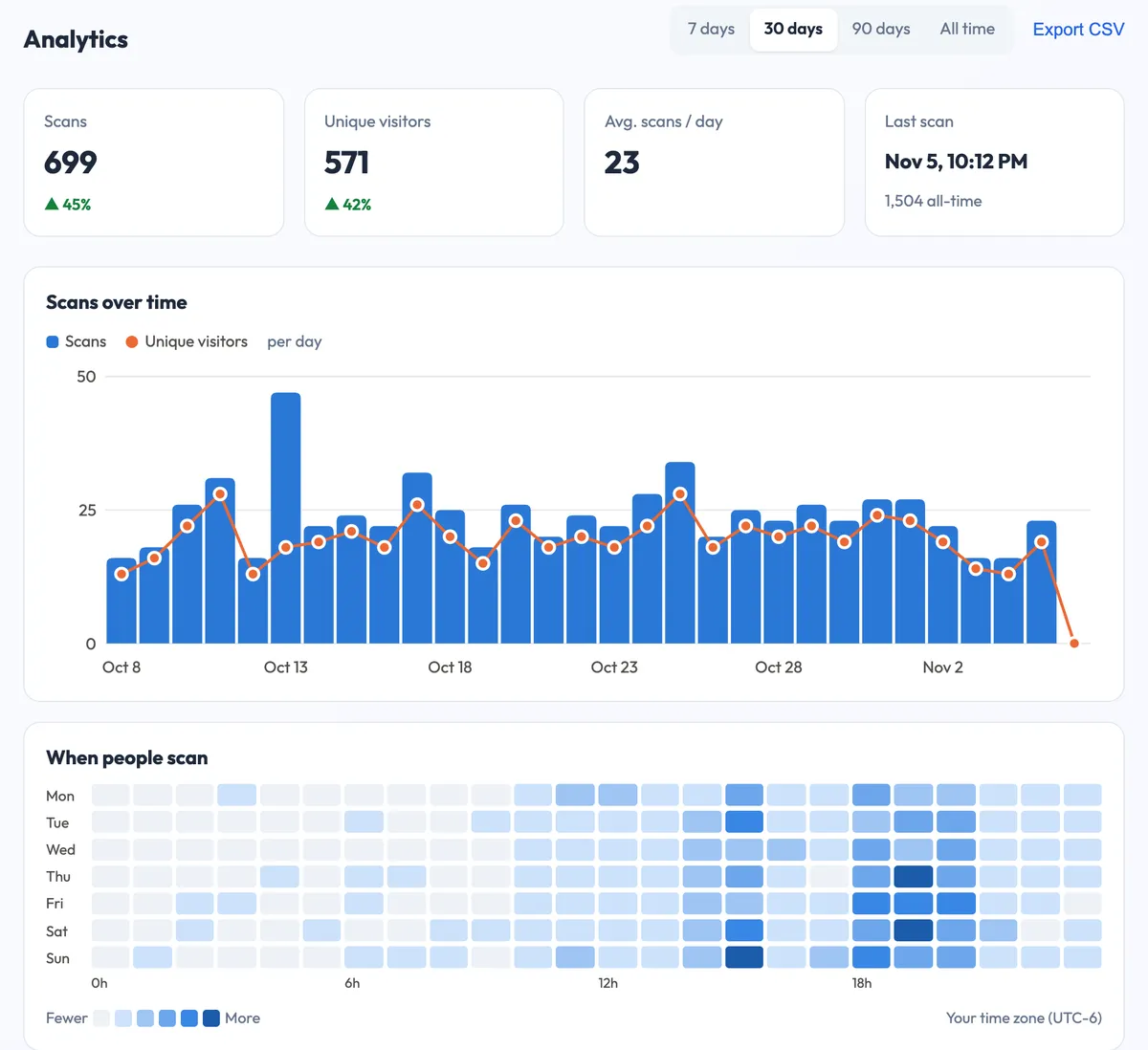
Keep two limits in mind. A scan is not a review: someone can open the form and close it, and a QR tool can't see what happens on Google's side. Check the reviews themselves in your Business Profile. Also, the stats are counts, not people. You see totals by day, hour, country and device, never who scanned.
Stay within Google's review rules
Asking for reviews is normal and allowed. How you ask is what matters. Google's prohibited and restricted content policy for Maps forbids offering incentives "such as payment, discounts, free goods and/or services" in exchange for posting any review. It also forbids discouraging negative reviews or selectively asking only happy customers. In practice:
- Ask everyone. Put the code where every customer sees it, not only the ones who smiled.
- No reward for reviewing. "Leave a review, get 10% off" is against the rules, even if you don't ask for five stars.
- No filter page. Don't send people to a "How did we do?" page that only passes happy customers on to Google. That is selective asking. If you want private feedback too, put it on a separate code with a clear label.
- Staff don't review their own workplace. The policy treats reviews from current or former employees as a conflict of interest.
Make leaving a review effortless for every customer, then let them say what they really think. A QR code should shorten the path to the form, never decide who gets to use it.
Troubleshooting
The code opens Maps but not the review form
Check that you pasted the link from "Get more reviews", not the listing's share link. If it opens the form in your phone's browser, the QR code will too.
The review link changed
This can happen when a business moves, gets a new profile or merges a duplicate listing. Copy the new link from Get more reviews, open your manage link, paste it and save. Every printed code follows straight away.
People scan but few reviews arrive
Usually nobody asked. A short sentence from staff, such as "If you enjoyed it, a quick review really helps us", next to the code does more than a sign on its own. A clearer call-to-action helps too. "Scan, tap the stars, done in 20 seconds" tells people how little effort it takes.
Someone can't scan it
Most phones scan from the camera app with no extra app. Our guide on how to scan a QR code on iPhone and Android is a handy link to share with staff.
Put it together
Copy the review link from Google Business Profile, paste it into a dynamic code, name it after its spot, print a sample and test it on two phones. A café or salon that also takes tips can put a separate digital tips QR code on the same stand, as long as tipping is never tied to leaving a review. All of it is free on the dynamic QR code generator, with no expiry and no scan limit.
Cover photo: "Barista prepares espresso at coffee shop" by Shixart1985, Wikimedia Commons, CC BY 2.0. Receipt photo: "Diamant Museum Amsterdam QR code receipt" by Donald Trung Quoc Don, Wikimedia Commons, CC BY-SA 4.0.