A QR code on a flyer sends visitors to your website, but Google Analytics has no way to know they came from paper. Without help, those visits land in reports as "direct" traffic or get lumped in with everything else. The fix is a UTM QR code: a code whose destination URL carries campaign tags, so GA4 can file every visit under the flyer, poster or mailer that produced it. This guide walks through the setup in six steps, with a naming convention you can copy, and explains why your QR scan count and your GA4 sessions will never match exactly.
What UTM parameters are
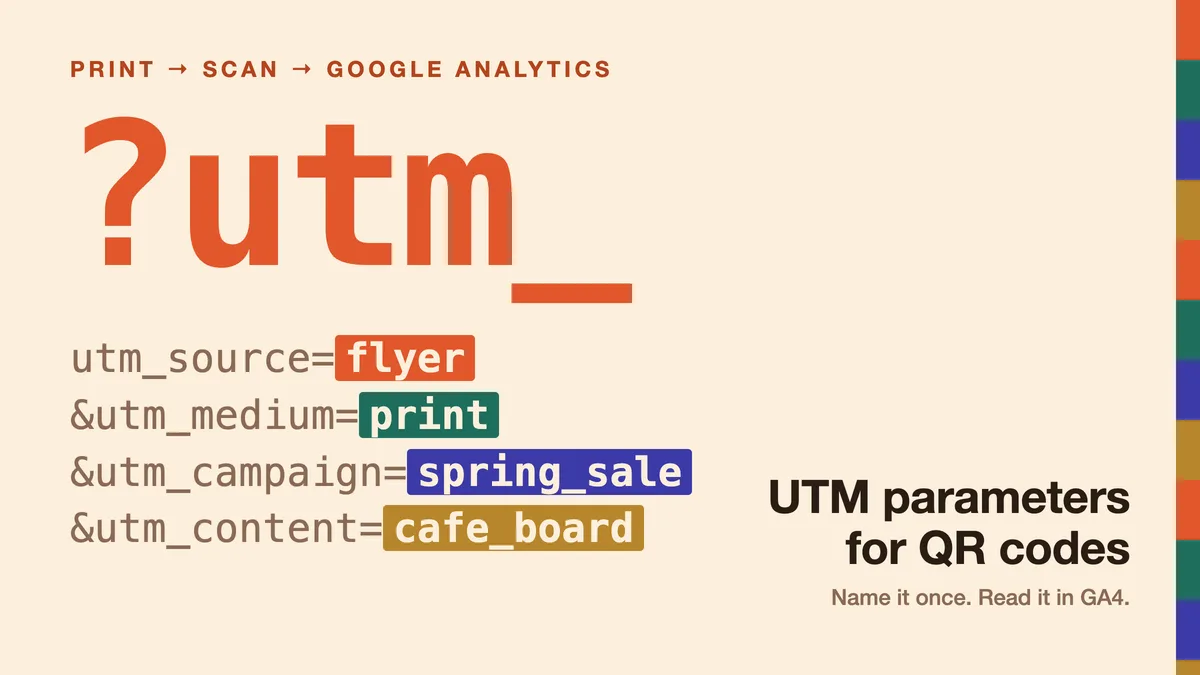
UTM parameters are tags added after a ? at the end of a URL. Google Analytics reads them when the page loads and uses them to label the visit. Google's own help page on custom campaign URLs lists the ones that matter for print:
- utm_source. Where the visit came from:
flyer,poster,direct_mail. - utm_medium. The type of channel: for anything printed,
printorqr. - utm_campaign. The promotion or project:
spring_sale,open_day_2026. - utm_content. Which version or placement:
cafe_noticeboard,back_cover. This is how you tell two codes in the same campaign apart. - utm_term. Meant for paid keywords. You can usually leave it out for print.
- utm_id. A campaign ID, useful if you import campaign cost data into GA4.
Google recommends always setting source, medium and campaign. A finished link looks like this:
https://example.com/?utm_source=flyer&utm_medium=print&utm_campaign=spring_sale&utm_content=cafe_noticeboard
Step 1: Agree on a naming convention before you build any links
UTM values are case-sensitive. Google's documentation says so plainly: utm_source=google and utm_source=Google are different values, and SpringSale and Spring_Sale become separate rows in your reports. The cure is a short written convention that everyone on the team follows:
| Parameter | Rule | Good | Avoid |
|---|---|---|---|
| utm_source | The printed item, one word per format | flyer, poster, direct_mail, business_card | Flyer, flyers, leaflet (if you already use flyer) |
| utm_medium | One value for all printed codes | print (or qr; pick one) | Print, offline, qr-code, print_qr in the same account |
| utm_campaign | The promotion, lowercase with underscores | spring_sale, open_day_2026 | Spring Sale, springsale, spring-sale-final |
| utm_content | Where this exact code is placed | cafe_noticeboard, store_window, mailer_v2 | poster1, test, new |
Two more rules save trouble. First, use lowercase everywhere and underscores instead of spaces, so no value ever gets encoded as %20. Second, keep the convention in a shared sheet next to every link you create, so next season's campaign reuses the same values.
A medium value GA4 won't misread
GA4 sorts manual traffic into channels using fixed rules, published in Google's default channel group definitions. Neither print nor qr matches any of them, so those sessions show up as "Unassigned" in channel reports. That is harmless: you will read them by source, medium and campaign anyway (Step 6). Avoid medium values that do match a rule by accident. A medium containing "mobile" is classed as Mobile Push Notifications, one containing "video" as Organic Video, and a source or medium of "email" lands in Email. If you want a "Print" channel, create a custom channel group with a rule for your medium.
Step 2: Build the tagged link
You can type the parameters by hand, but Google's free Campaign URL Builder removes the risk of a missing & or =. Paste the landing page URL, fill in source, medium, campaign and content, and copy the generated link. Open it once in a browser to make sure the page loads.
Point the link at a real landing page, not your home page, whenever you can. A flyer that promises 20% off should open the offer, not the front of the site.
Step 3: Put the UTM link on a dynamic QR code
A tagged link is long. Encode it directly in a static QR code and the code gets denser, with smaller modules that are harder to scan from a distance or on a small flyer. A dynamic code solves this: the printed code only contains a short link such as dynamicqrtool.com/r/MkAPXbb, and the long UTM link is stored as its destination.
On Dynamic QR Tool, paste the full tagged URL into the destination field and create the code. When someone scans it, the short link answers with a redirect to the saved destination exactly as stored, query string included, so GA4 receives every UTM value. Destinations can be up to 2,048 characters, which is plenty for a full set of parameters.
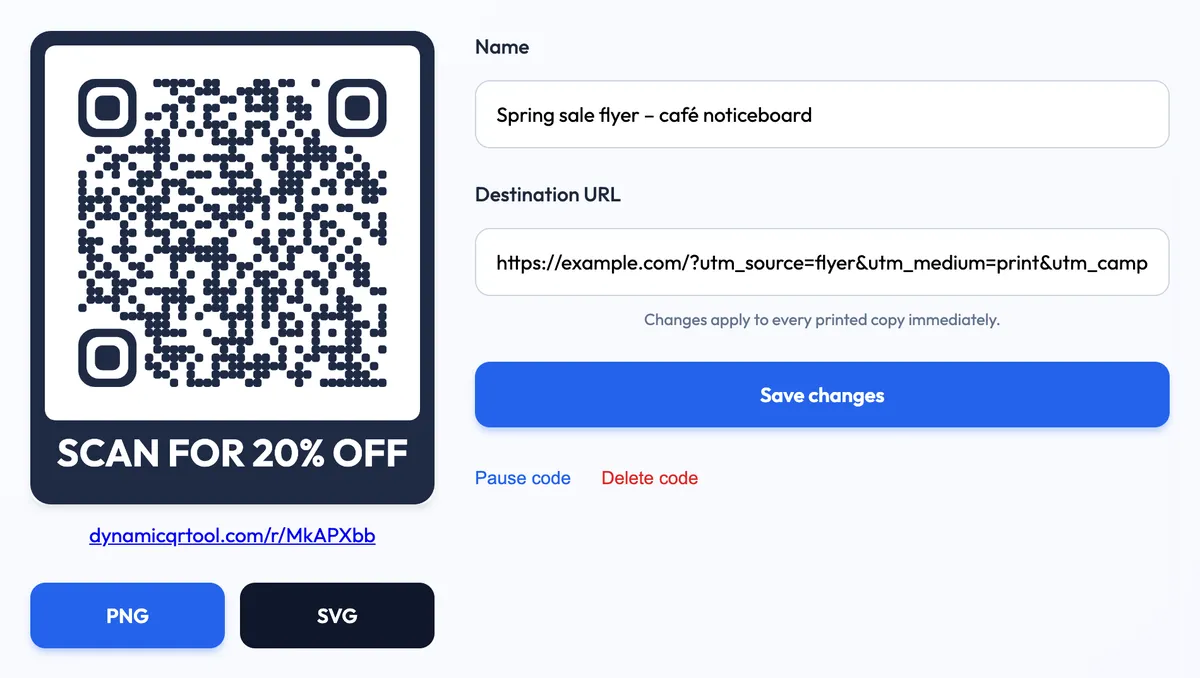
The bigger benefit shows up after printing. Spot a typo in utm_campaign once 2,000 flyers are out? Fix the destination on the manage page and save; every printed copy uses the corrected link from the next scan. With a static code, the wrong tag is printed forever. The same applies when the landing page moves or the campaign ends and you want the code to open something else.
One thing the redirect does not do is pass on parameters added to the short link itself. Tags belong in the destination URL, not after /r/MkAPXbb.
Step 4: Give every placement its own code
If the same flyer goes on a café noticeboard, in a library and through letterboxes, one code tells you the flyer worked. Three codes tell you where. Create one dynamic code per placement and change only utm_content:
- Café noticeboard.
…&utm_campaign=spring_sale&utm_content=cafe_noticeboard - Library rack.
…&utm_campaign=spring_sale&utm_content=library_rack - Letterbox drop.
…&utm_campaign=spring_sale&utm_content=letterbox
Name each code to match its utm_content value so the two reports line up. The flyer QR code generator works well for the handouts; for mailings, the direct mail QR code generator lets you split by mail drop or by version (mailer_a, mailer_b) the same way.
Step 5: Test the whole chain before printing
- Scan the code with a phone camera, over mobile data rather than office Wi-Fi.
- When the page opens, check the address bar: the
?utm_part should still be there. If your site redirects (for example fromhttptohttps, or to add a trailing slash), make sure the redirect keeps the query string. - Open GA4's Realtime report and confirm your visit appears.
- Repeat for each placement code. A mixed-up pair of codes is easy to fix now and impossible to untangle later.
Step 6: Read the results in GA4
In GA4, go to Reports → Acquisition → Traffic acquisition. Change the table's main dimension to Session source / medium and look for flyer / print, or switch it to Session campaign to see spring_sale. To compare placements, add Session manual ad content as a secondary dimension or in an exploration; that is where utm_content values appear. Add your key events (purchases, sign-ups, form submissions) to see which placement led to results, not just visits.
Why QR scans and GA4 sessions don't match
Expect your QR tool to show more scans than GA4 shows sessions. They are counted in different places:
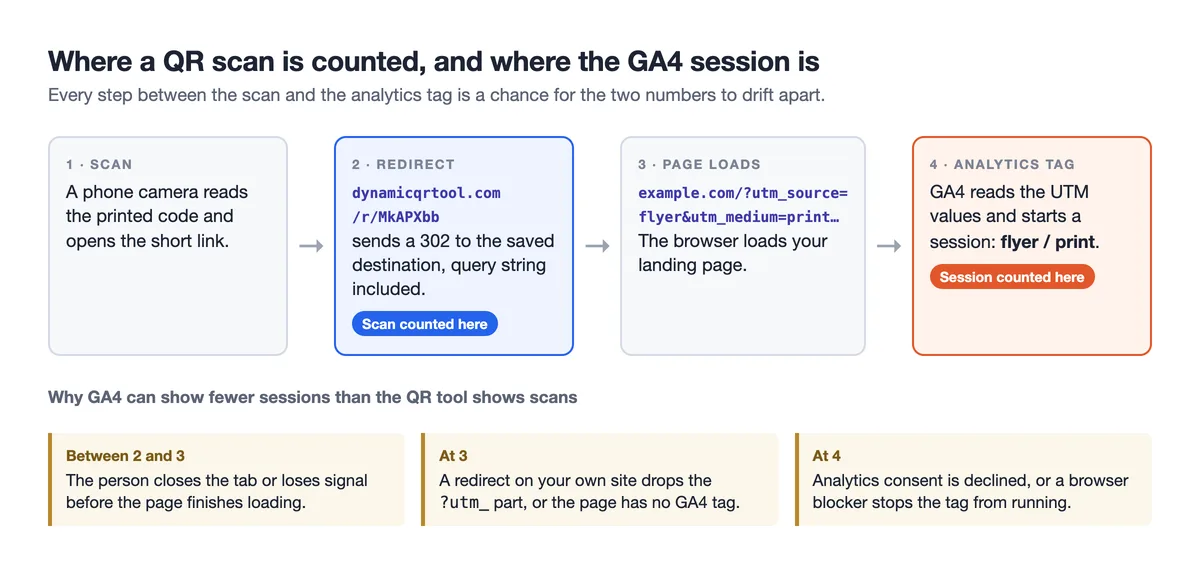
Dynamic QR Tool counts the scan at the redirect, before your page starts loading, and without cookies. GA4 only records a session if the page loads, the tag runs and the visitor's consent settings allow analytics. Anyone who closes the tab early, declines analytics cookies or uses a blocker is a scan with no session. Bots and link previews are excluded from scan counts, and GA4 applies its own filtering, so the two tools also disagree at the edges.
There is no fixed "normal" gap. Use each tool for what it measures: scan analytics for reach, timing and device mix (see how to track QR code scans and unique vs total scans), and GA4 for what visitors did on your site. A gap that suddenly widens on one code is the useful signal: check its landing page first.
Put the UTM tags on the destination of a dynamic code, not in the printed pattern. The code stays small and scannable, and any tagging mistake can be fixed after the print run.
Common mistakes to avoid
- Tagging internal links. UTMs belong on links that bring people to your site. Adding them to links between your own pages overwrites the real source of the visit with your own tags.
- Mixed case and synonyms.
Print,printandofflinebecome three rows. Stick to the convention. - Redirects that drop the query string. Test the final address bar, not just that the page loads.
- Only the three required tags. Without
utm_contentyou can't compare placements later. - A shortener in the middle. Paste the final URL as the destination; extra hops add delay and another place for tags to get lost.
Ready to set one up? Create a free dynamic code on the Dynamic QR Tool generator, paste your tagged link as the destination, and both your scan stats and GA4 start filling in from the first scan.