You've made your QR code and now there are two download buttons: PNG and SVG. Which one should go to the printer? The choice matters more than it looks. The pattern inside both files is identical, so a phone reads them the same way, but they behave very differently once someone resizes them for a brochure, an ad or a banner. This guide settles QR code SVG vs PNG for every common job, explains how large a PNG can safely print, and covers the file mistakes that turn a crisp code into a blurry one.
The short answer
Use SVG for anything printed, and PNG for screens and for tools that don't accept SVG. If you only remember one rule, that's it. The table shows why.
| SVG | PNG | |
|---|---|---|
| What it is | Vector: shapes described with maths | Raster: a fixed grid of pixels |
| Scaling up | Stays sharp at any size | Edges soften once you pass its pixel size |
| Best for | Brochures, ads, posters, signs, packaging | Slides, websites, emails, documents |
| Works in | Design and layout tools, most modern apps | Practically everything |
| Editable later | Colours and shapes can be adjusted by a designer | Only by editing pixels |
What's actually different inside the files
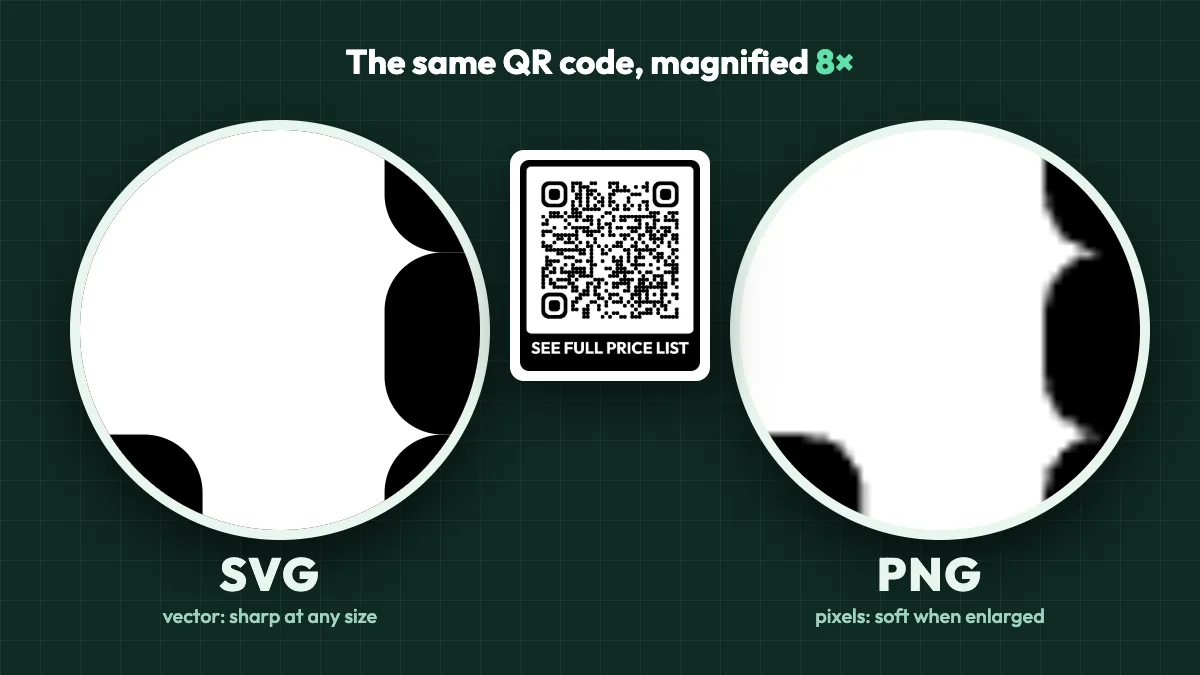
A PNG is a photograph of your code. It stores a fixed number of pixels, and each pixel is either dark or light. When you print it bigger than those pixels allow, the software has to invent the in-between pixels, and the edges of each square go soft and grey.
An SVG is a set of instructions: "draw a black square here, this big". The printer or design app follows those instructions at whatever size you need, so every edge stays clean, whether the code is 2 cm on a coupon or 2 metres on a banner. The cover image of this post shows the same code downloaded in both formats and magnified eight times. The SVG edges are still razor sharp, while the PNG edges have started to blur.
A little softness doesn't usually stop a scan on its own. The problem is that it eats into your margin. Add a glossy finish, dim light and an older phone, and the blurry version fails first.
When SVG is the right choice
- Professional print. Anything that goes through a print shop: QR codes on brochures, catalogues, menus, packaging, labels and stickers. Designers place the SVG in their layout and can resize it freely.
- Ads with strict specs. Publishers reject low-resolution artwork. A vector code passes any resolution check, which is why SVG is the safe choice for QR codes in magazine ads and newspaper inserts.
- Large formats. Posters, banners, window graphics and trade-show walls. You never have to calculate pixels.
- Cutting and engraving. Vinyl cutters, laser engravers and sign makers work from vector shapes. Most will ask for SVG, PDF or EPS. An SVG can usually be opened and resaved as PDF or EPS in a design tool.
When PNG is perfectly fine
PNG is the more convenient format. Every app, website builder, slide deck and email tool accepts it. For anything shown on a screen, it's the right pick. It also works for print as long as the file has enough pixels for the printed size.
The rule of thumb for print is 300 pixels per inch (ppi) at the final size, which is about 118 pixels per centimetre. Large items viewed from further away, like posters, can get away with 150 ppi. Here's how many pixels a PNG needs at 300 ppi:
| Printed code width | Pixels needed at 300 ppi | Typical use |
|---|---|---|
| 2 cm (0.8 in) | about 240 px | Business cards, small labels |
| 3 cm (1.2 in) | about 355 px | Flyers, brochures, table cards |
| 5 cm (2 in) | about 590 px | Magazine ads, menus |
| 8 cm (3.1 in) | about 945 px | A4 or letter-size posters |
| 10 cm (3.9 in) | about 1,180 px | Larger posters, displays |
The PNG from Dynamic QR Tool is 1024 × 1024 pixels for a plain code (1104 × 1294 with a call-to-action frame). That covers a code up to about 8.7 cm (3.4 in) wide at 300 ppi, or about 17 cm (6.8 in) at 150 ppi. So for most flyers and documents, the PNG is plenty. Go bigger than that and switch to the SVG. If you're not sure what size your code should be in the first place, our QR code size guide works it out from the scanning distance.
One quirk to know: the PNG doesn't carry a print resolution, and many apps then assume a low default and place it at a large size on the page. That's harmless. Just scale it down to the size you want. Scaling a PNG down is always safe; it's scaling up past its pixels that causes blur.
The format doesn't change what the code says, only how well it survives being resized. If the code will be printed, send the SVG and the question of resolution simply disappears.
File mistakes that blur a QR code
- Saving it as JPG. JPG compression smudges hard edges and adds faint noise around each square. QR codes are pure hard edges, so keep them as PNG or SVG.
- Using a screenshot. A screenshot captures the code at whatever size it happened to be on your screen, often a few hundred pixels. Always use the downloaded file.
- Auto-tracing a PNG into a vector. "Image trace" tools can round off corners or merge neighbouring squares. If you need a vector, download a fresh SVG instead.
- Stretching it. Always resize proportionally. A squashed code can still scan, but it's needlessly fragile.
- Cropping the white border. Both files include a quiet zone, the empty margin around the code. Scanners need it to find the code, so don't trim it to save space.
Three print details worth checking
The call-to-action label
If you add a frame with a label like "SCAN FOR PRICES", the SVG keeps that label as real text, set in the Outfit typeface with Helvetica Neue and Arial as fallbacks. On a computer without Outfit, the label shows in a fallback font. It's still readable, but it may look slightly different. If the exact look matters, ask your designer to convert the text to outlines, or check the printer's PDF proof before you approve it.
Logos inside the code
A logo you upload is embedded in the SVG as the same file you uploaded. A small PNG logo is still a small pixel image inside a vector code, so upload a large or vector logo if the code will be printed big. Our guide to adding a logo to a QR code covers size and placement.
Colour on press
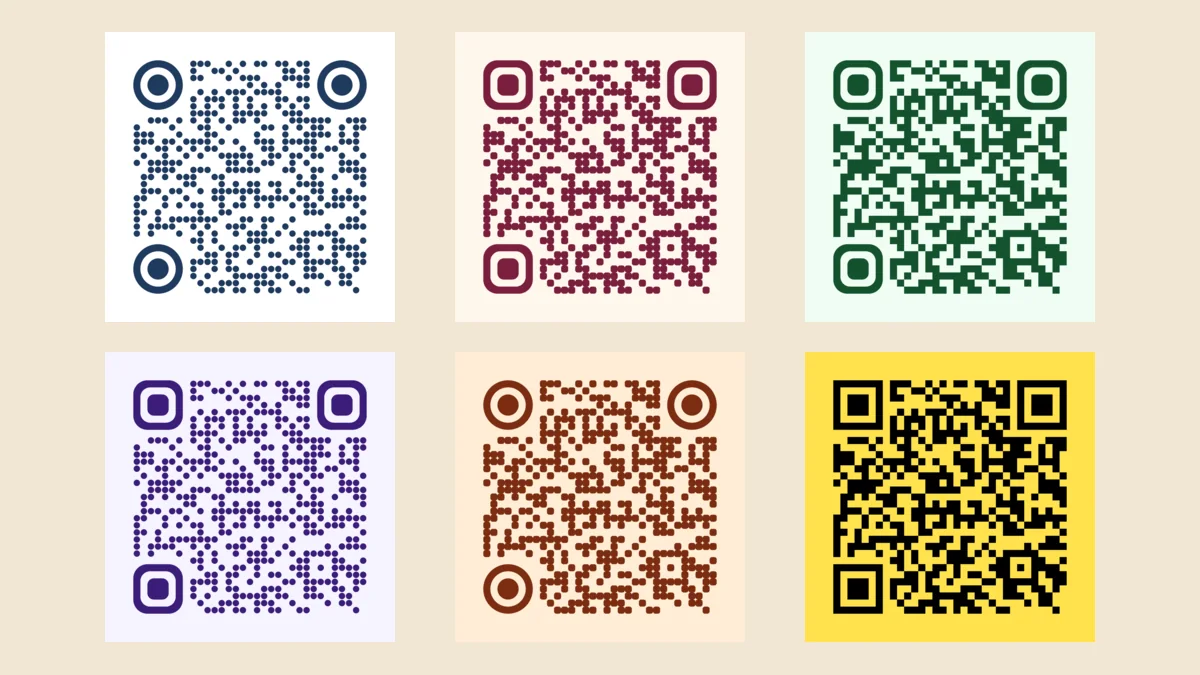
Both files store colours for screens (RGB), and the print shop converts them to ink (CMYK). With the default black-on-white code that's straightforward. Some printers will also set the squares to pure black ink rather than a four-colour black, which keeps small edges crisp. If you're using brand colours, keep the contrast strong, as explained in our article on QR code colors.
How to download SVG and PNG on Dynamic QR Tool
The free QR code generator gives you both formats for every code, at no cost and with no watermark.
- Choose the type of code. For printed material that links to a web page, Dynamic URL is usually the better pick, because you can change the destination later without reprinting.
- Enter your link and set the design: colours, dot and corner style, a frame with a call to action and an optional logo.
- For a dynamic code, click Create dynamic QR code first. Static codes can be downloaded straight away.
- Click SVG for print and PNG for screens.
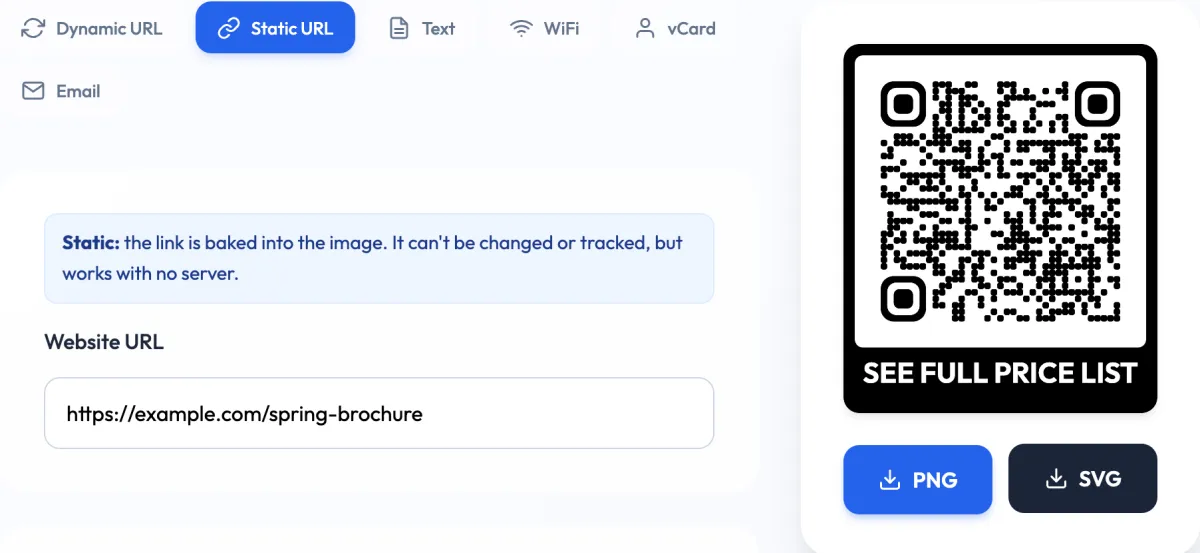
Lost the files? For dynamic codes, the manage page has the same PNG and SVG buttons, so you can download the code again at any time without changing what's printed.
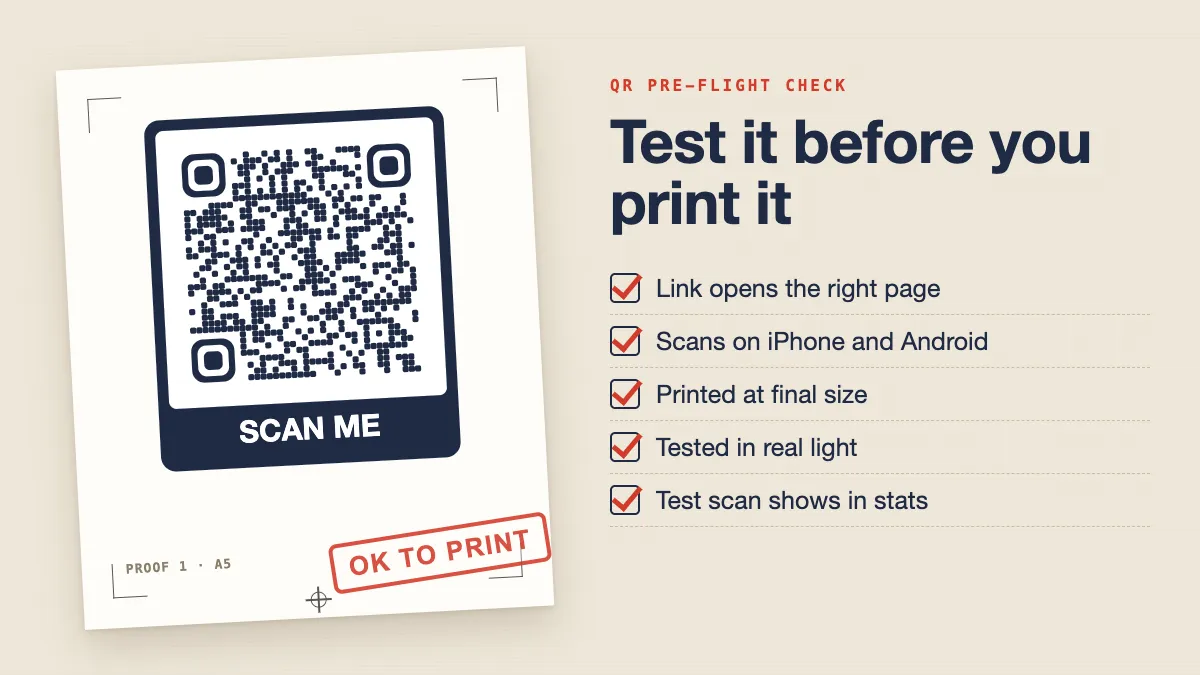
Whichever format you send, scan a printed proof with two or three different phones before the full print run. It takes a minute and catches problems that no file format can fix.
Quick answers
Does the file format affect whether the code scans?
Not directly. Both files contain exactly the same pattern. Format only matters when the file is resized: an SVG stays sharp, a PNG can blur if it's enlarged too far.
My printer asked for PDF or EPS. What do I send?
Send the SVG to whoever is preparing the artwork. Design tools can open it and export it as a PDF or EPS with the code still in vector form.
Can I use the SVG in Word, Canva or Google Slides?
Many modern tools accept SVG, but not all of them. If a tool refuses it, use the PNG. At normal document sizes it will look just as good.