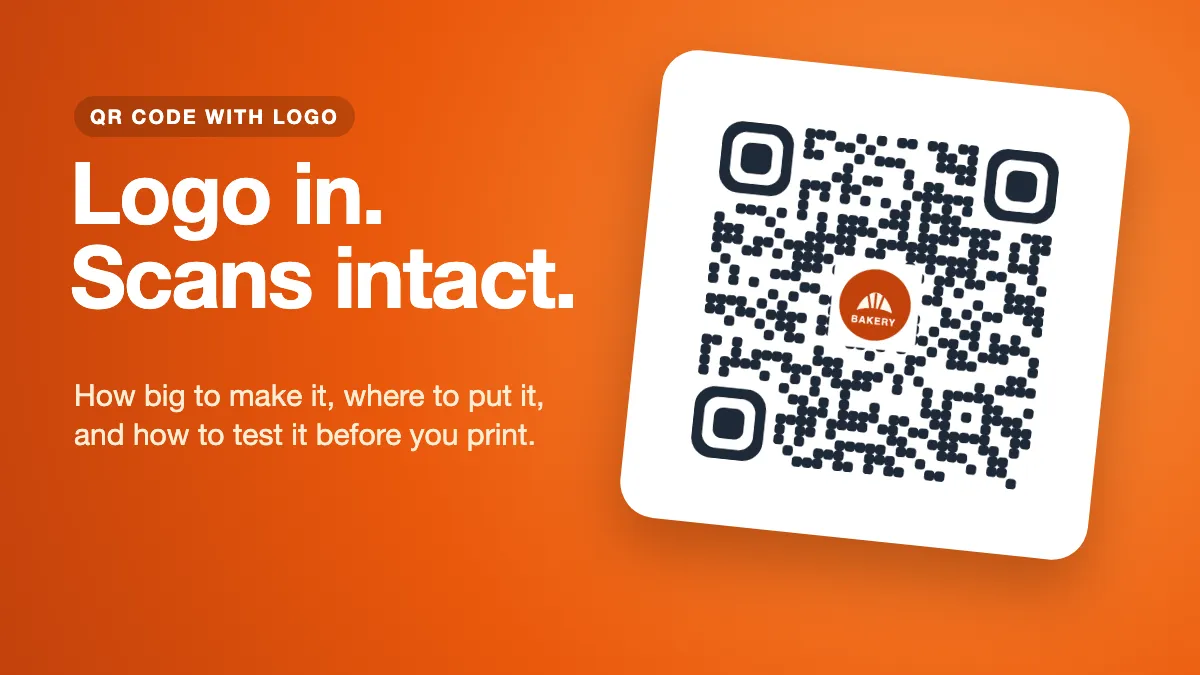
A QR code with logo in the middle looks finished and trustworthy. People can see whose code it is before they scan, which matters when so many codes look identical. But a logo also covers part of the code, so it raises a fair question: how can a code still work when a chunk of it is hidden? The answer is error correction, and it has limits. This guide explains how to add a logo to a QR code, how big that logo can safely be, and the design choices that keep it scannable on paper, not just on your screen.
Why a QR code still scans with a logo on top
Every QR code stores its data with some extra recovery information, called error correction. If part of the code is dirty, torn or covered, the scanner can rebuild the missing pieces from what remains. The QR standard has four levels. According to Denso Wave, the company that invented the QR code, they restore roughly this much of the data:
| Level | Data that can be restored | Good for |
|---|---|---|
| L | about 7% | Clean screens, maximum data |
| M | about 15% | General use without a logo |
| Q | about 25% | Rough surfaces, small marks |
| H | about 30% | Codes with a logo, harsh environments |
A logo is deliberate damage. The scanner can't tell your artwork apart from a coffee stain, so it treats every covered square as an error to repair. That's why a code with a logo should always use level H, the highest one. The trade-off is that level H adds more squares to the code, so for the same printed size each square gets a little smaller.
The 30% figure is a best case, not a budget to spend. It assumes nothing else is wrong. In real life, the print, the light, the distance and the phone camera all use up part of that margin before your logo does.
How big can the logo be?
We tested this rather than guess. We rendered the same short link at error correction H with a logo in the centre at different widths, each on a small white backing square. Then we ran each file through Apple's built-in QR detector. To imitate a poor camera shot, we also shrank every image to 180 pixels and tried four increasing levels of blur and noise.
- On a perfect digital file, every logo up to 40% of the code's width still decoded. At 45% the code failed.
- Under blur, the code with no logo decoded at all four levels. Every version with a logo began to fail sooner, at two or three levels out of four. The 45% logo failed every time.
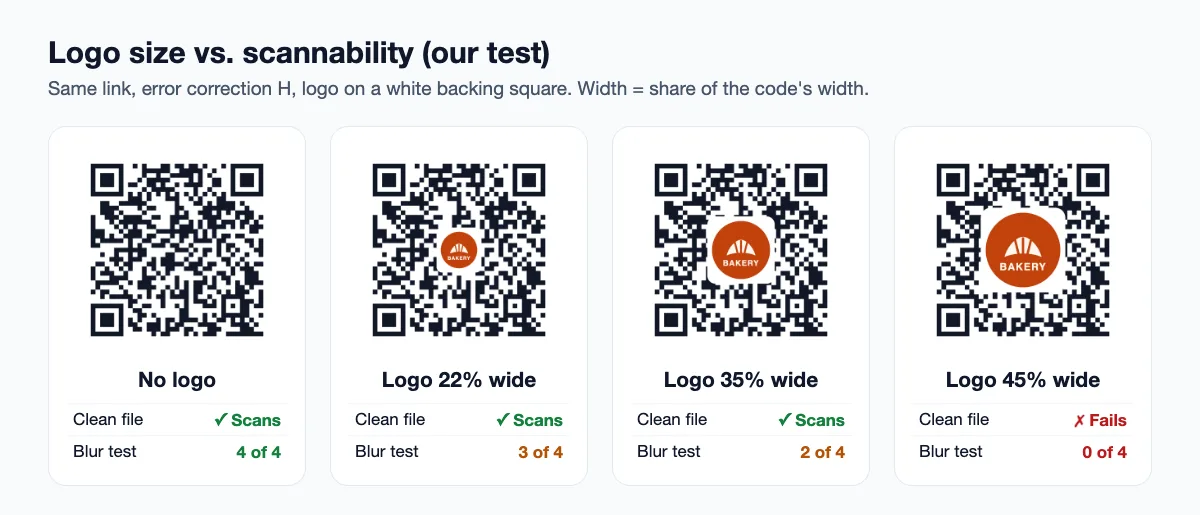
This was a small test with one detector and one link, so treat the exact numbers as a guide. The pattern is still clear and matches what print designers usually advise. A logo that's too big can break a code outright. A logo that's merely big still works, but it leaves less room for everything else that can go wrong.
In practice, keep the logo to about a fifth of the code's width. By area, that covers only around 5% of the code, which leaves most of the error correction for real-world wear and tear. That's the size Dynamic QR Tool uses automatically: the logo takes about 22% of the code's width, on a light backing square slightly larger than the logo.
Error correction is a safety net, not free space. The smaller your logo, the more of that net is left for bad light, scuffed paper and older phones.
Design rules for a logo that won't break the code
- Put it in the centre. The three large squares in the corners are how a phone finds and aligns the code. Never cover them, and don't put the logo against an edge.
- Use a simple mark, not the full lockup. A wordmark with small text becomes unreadable at the size of a few QR squares. An icon, monogram or symbol works far better.
- Prefer a square or round shape. A wide, flat logo has to be scaled down until its width fits, so it ends up tiny. If your logo is wide, use the symbol from it instead.
- Give it a backing. A light square or circle behind the logo separates it from the pattern, so the logo looks clean instead of tangled with the squares around it.
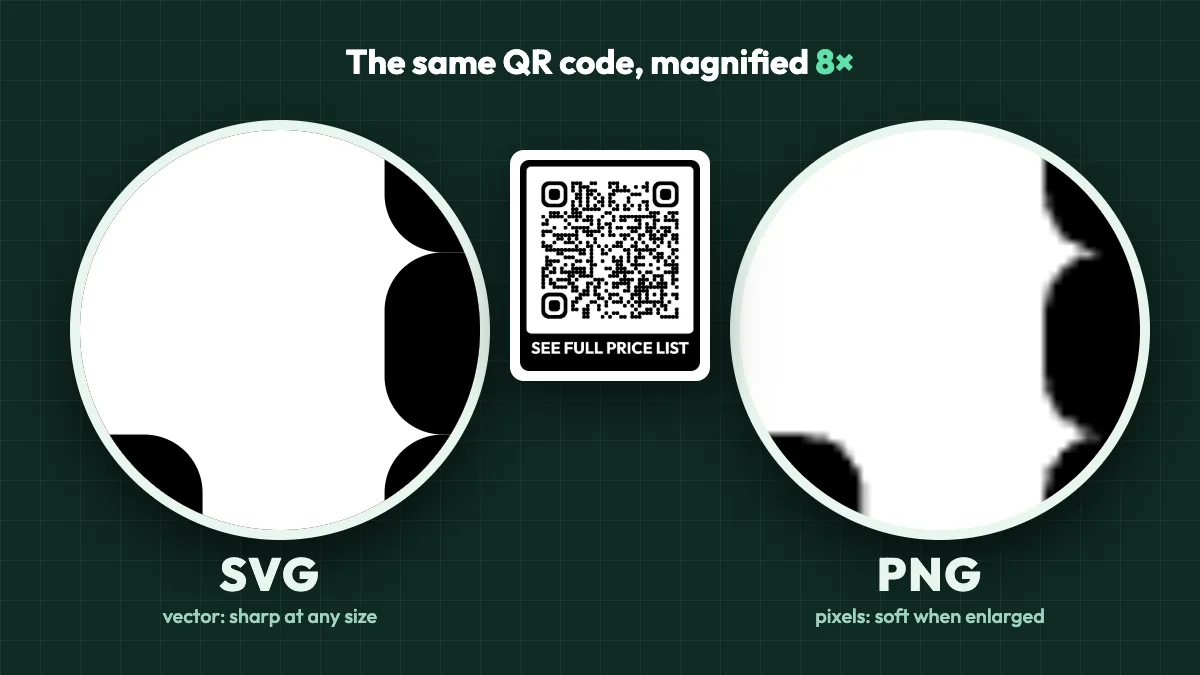
- Use a high-resolution file. A PNG with a transparent background or an SVG gives sharp edges. A blurry, low-resolution logo looks worse than no logo at all.
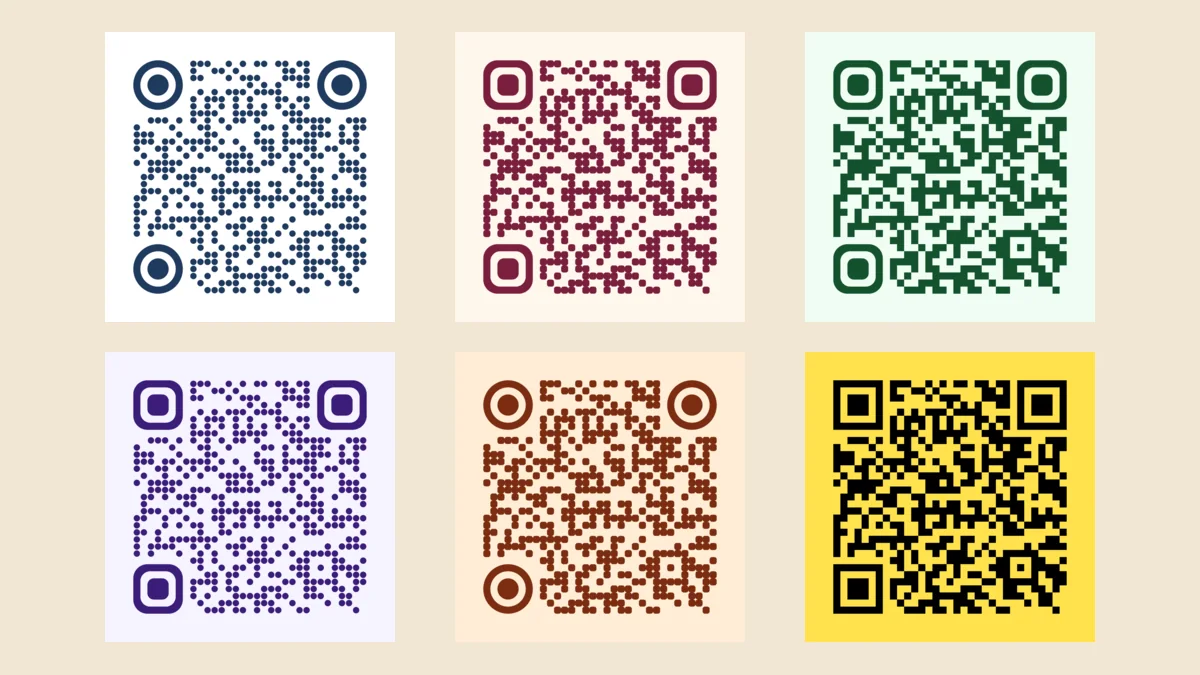
- Keep the code itself dark on light. The logo is where your brand colour can shine. The squares should stay dark against a light background, as explained in our guide to QR code colors.
- Keep the link short. A short link makes a simpler code with larger squares, which tolerates a logo better. Dynamic codes help here, because the code only stores a short redirect link no matter how long your real URL is.
How to add a logo to a QR code on Dynamic QR Tool
You don't need design software. The free dynamic QR code generator handles the logo size, backing and error correction for you.
- Paste your destination link. Choose Dynamic URL if you might want to change the link later.
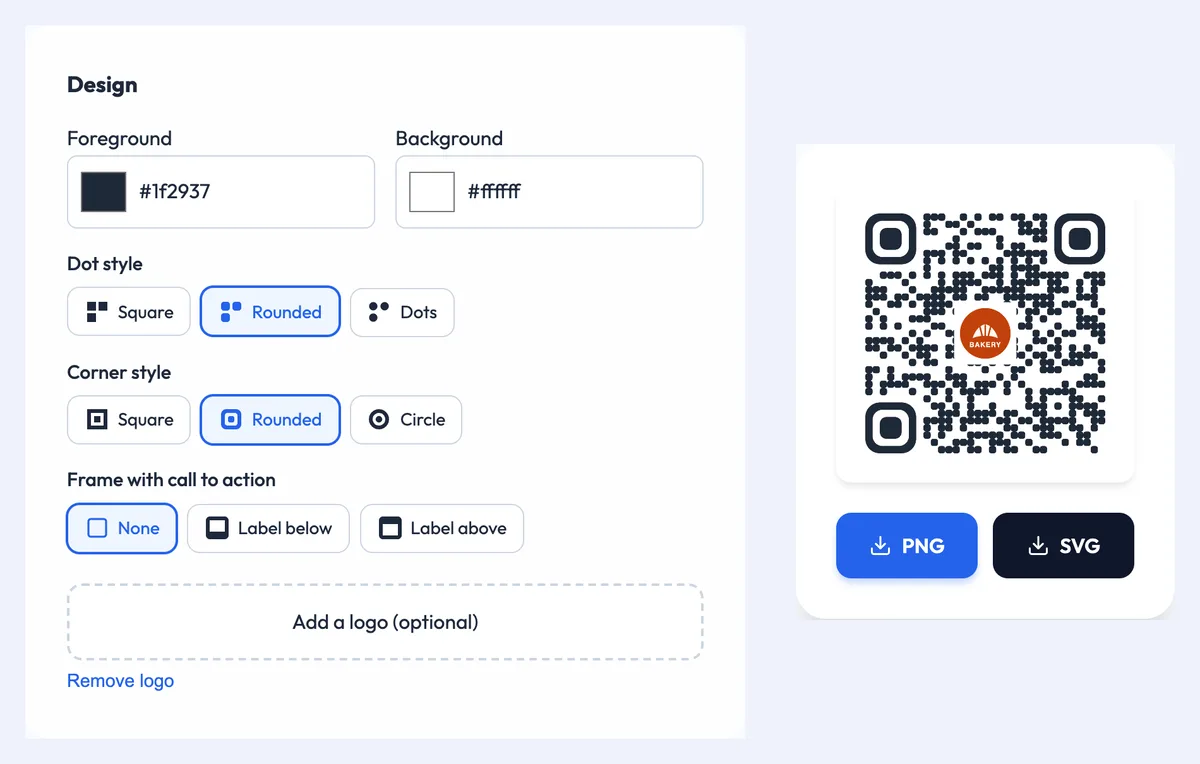
- Under Design, set your colours and, if you like, a dot style, corner style and a frame with a call to action.
- Click Add a logo (optional) and choose a PNG, JPG, SVG or WebP file under 2 MB. The preview updates straight away, with the logo centred on a light backing square.
- Check the preview. If the logo looks cramped or unreadable at that size, try a simpler version of it.
- Create the code and download it. The SVG includes the logo, so it stays sharp at any print size, and the PNG is ready for screens and documents.
One detail worth knowing: your logo is never uploaded to our servers. It's placed into the code inside your browser. That's good for privacy, but it means the manage page doesn't remember it. If you change the design of a dynamic code later and want to download it again, add the logo once more before you export. Changing where the code points doesn't require a new file at all, so a printed code with a logo keeps working when you update its link.
Where a logo is worth it, and where it isn't
A logo earns its place when people need to trust the code before they scan it, or when the code sits in your branded material:
- Business cards. A small mark in the centre ties the code to your brand on a card that already carries your logo. Cards are small, so keep the logo modest and the code large enough to scan. Our page on QR codes for business cards covers what to link to.
- Product packaging. A logo makes it clear the code comes from the manufacturer and not from a sticker added later. Curved and glossy surfaces already make scanning harder, so this is where the small-logo rule matters most. See QR codes on product packaging for ideas.
Skip the logo when the code is very small, when it will be scanned from far away, or when it will be printed on a rough or uneven material. In those cases, every bit of error correction is better spent on keeping the code readable. A clear call to action in a frame, such as "SCAN FOR MENU", often does more for scans than a logo does.
Common mistakes
- Stretching the logo to fill the middle. Bigger feels more on-brand, but it eats the margin that keeps the code working outside the office.
- Adding a logo to a low-correction code. If you paste a logo onto a code made at level L or M in another tool, it may not scan at all. Always add the logo with a tool that sets level H.
- Shrinking the whole code to make room. A logo doesn't change the minimum print size. Follow the QR code size guide and size the code for the scanning distance first.
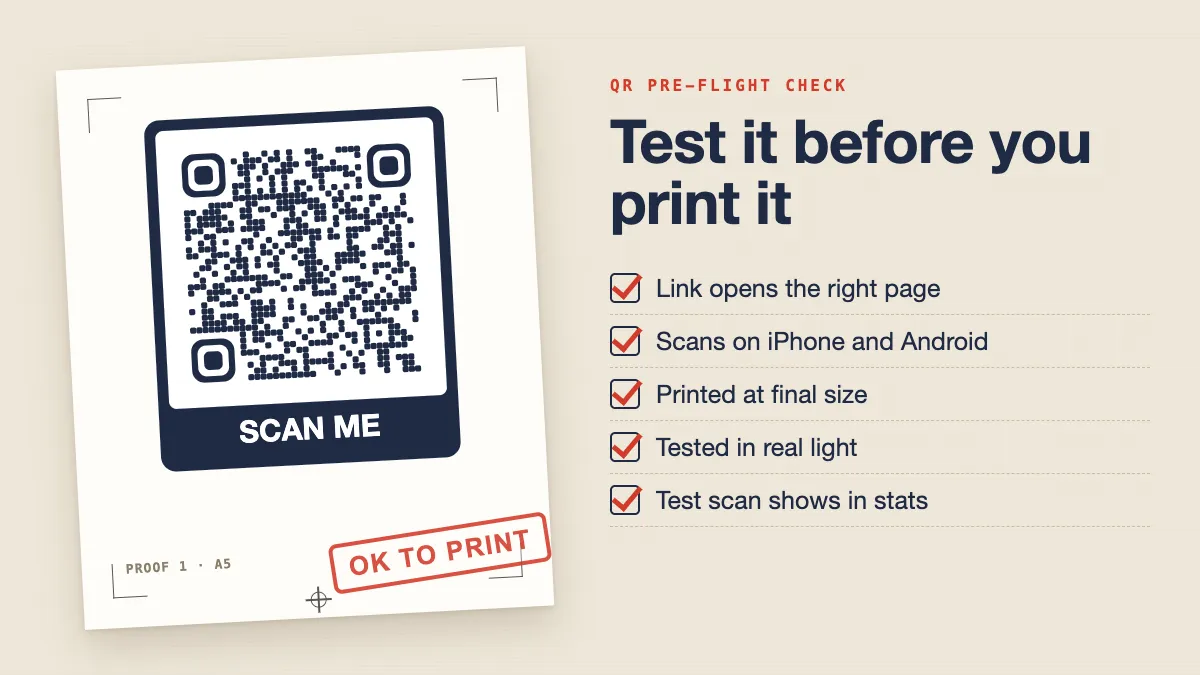
- Trusting a scan from your monitor. A crisp file on a bright screen is the easiest case. Scan a printed sample with more than one phone, including an older one, before the full print run.
The short version
To add a logo to a QR code and keep it scannable, use error correction H, keep the logo in the centre at around a fifth of the code's width, give it a light backing, and keep the code dark on light. Dynamic QR Tool does the sizing, backing and error correction automatically, so you only need to choose a clean, simple version of your logo and test a printed sample before you order hundreds.