A QR code that fails after printing costs you twice: once for the print run and again for every person who tried to scan it and gave up. The good news is that almost every failure can be caught in ten minutes, before anything goes to the printer. This guide shows you how to test a QR code before printing, step by step. It covers the link, the file, a printed proof, the phones you test with, and a final scan you can actually see in your statistics.
Why "it scans on my screen" isn't a test
Your monitor is the easiest place a code will ever be scanned: bright, sharp, flat and close to a recent phone. Readers will scan it from a doormat, a noticeboard or a bus shelter, in poor light, with whatever phone they own. A real test recreates those conditions and also checks where the code sends people.
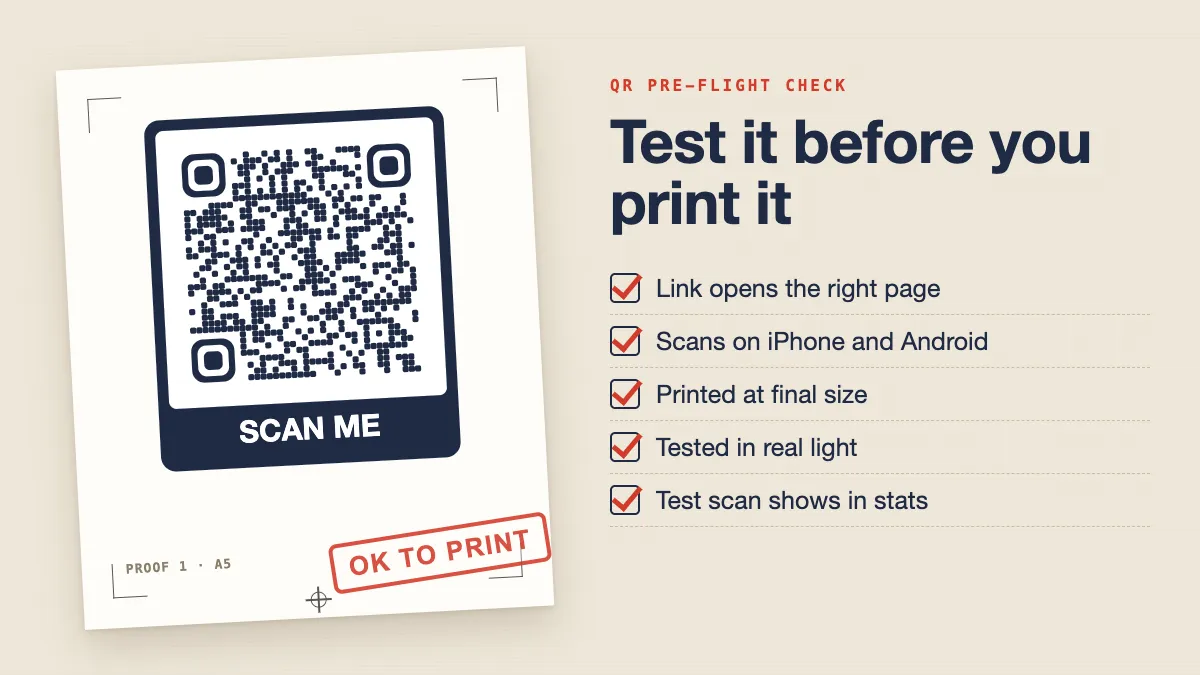
The QR code pre-flight checklist at a glance
| Check | How | Pass if |
|---|---|---|
| Destination | Scan, then open the page on mobile data | The right page loads quickly on a phone |
| Code type | Look at the link preview when you scan | It shows a short redirect link if you need to edit it later |
| Print file | Open the file the printer will use | Vector or high resolution, quiet zone intact, nothing on top |
| Printed proof | Print at final size on the real material | Scans in a second or two from the real distance |
| Devices | Default camera on iPhone and Android, one older | Every phone opens the page |
| Confirmation | Check the code's scan stats | Your test scans appear |
Step 1: Check where the code really goes
Most broken codes aren't unreadable. They read perfectly and open the wrong thing. So test the destination first, and test the link the code contains, not the one you think you typed.
- Scan it and open the page. Don't check the URL in your document. Check where your phone lands after scanning, because a typo, a stray space or an old draft link only shows up this way.
- Turn off Wi-Fi. Load the page on mobile data. Many people will, and a heavy page that's fine in the office can stall on a weak connection.
- Read it on the phone. The page should be built for a small screen, with the thing the code promised visible without hunting for it. If the flyer says "20% off", the offer should be the first thing on the page.
- Make sure it isn't behind a login. Shared drive links and draft previews work for you because you're signed in. Test on someone else's phone.
- Check the address is https. Browsers label plain http pages as "Not secure", which is the last thing you want next to a code people were unsure about scanning.
- Check the tracking tags. If you added UTM parameters, confirm they survive the redirect and appear in your web analytics as the right source.
If the page isn't ready yet, that's fine for a dynamic code. You can point it at a holding page now and switch it to the real page later. With a static code, the page address has to be final before printing.
Step 2: Check the code type and the print file
When you scan, your phone shows a preview of the link before you open it. If you made a dynamic code on the free dynamic QR code generator, the preview shows a short link such as dynamicqrtool.com/r/… rather than your own page address. That short link is what lets you change the destination after printing. If you see your full page URL instead, you've got a static code, and any mistake is printed in for good. Our guide on static vs dynamic QR codes explains the difference.
Next, open the exact file that will be printed, not the one on your desktop.
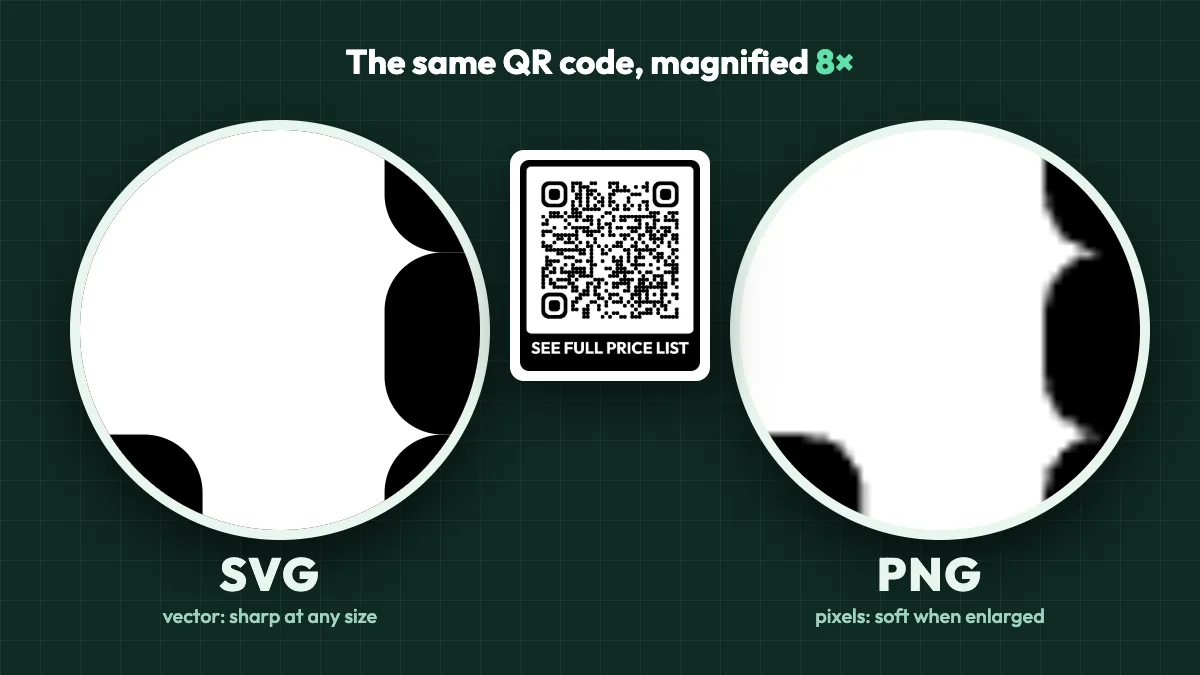
- Use a vector file for print. An SVG stays sharp at any size. A small PNG that's been enlarged turns blurry at the edges. See QR code SVG vs PNG for when each one is right.
- Keep the quiet zone. The plain margin around the code is part of it. Check that no text, border, fold or photo edge has crept into it.
- Nothing on top. No page numbers, stickers, price flashes or design elements overlapping the code.
- One code per version. If you're printing several versions, open each final file and scan each code. It's easy to paste the same code into every version, or the wrong one into one of them.
Step 3: Print a proof and scan it like a stranger would
Now print a sample at 100% of its final size, ideally on the same paper or material. Size and colour each have their own test, so we won't repeat them here. Use the QR code size guide to check the scanning distance, and the pre-print test in QR code colors if your code isn't black on white. Then scan the proof the way a stranger would:
- Use the default camera app, not a dedicated scanner app. That's what most people use.
- Test at least one iPhone and one Android phone, and include an older model if you can borrow one.
- Stand where people will stand. Scan from the real distance, at a slight angle, without stepping closer.
- Use the real light. Try the dim corner, the evening table or the sunny window where it will actually be seen.
- Time it. If anyone needs more than a couple of seconds, or has to move the phone around to get a read, treat it as a fail.
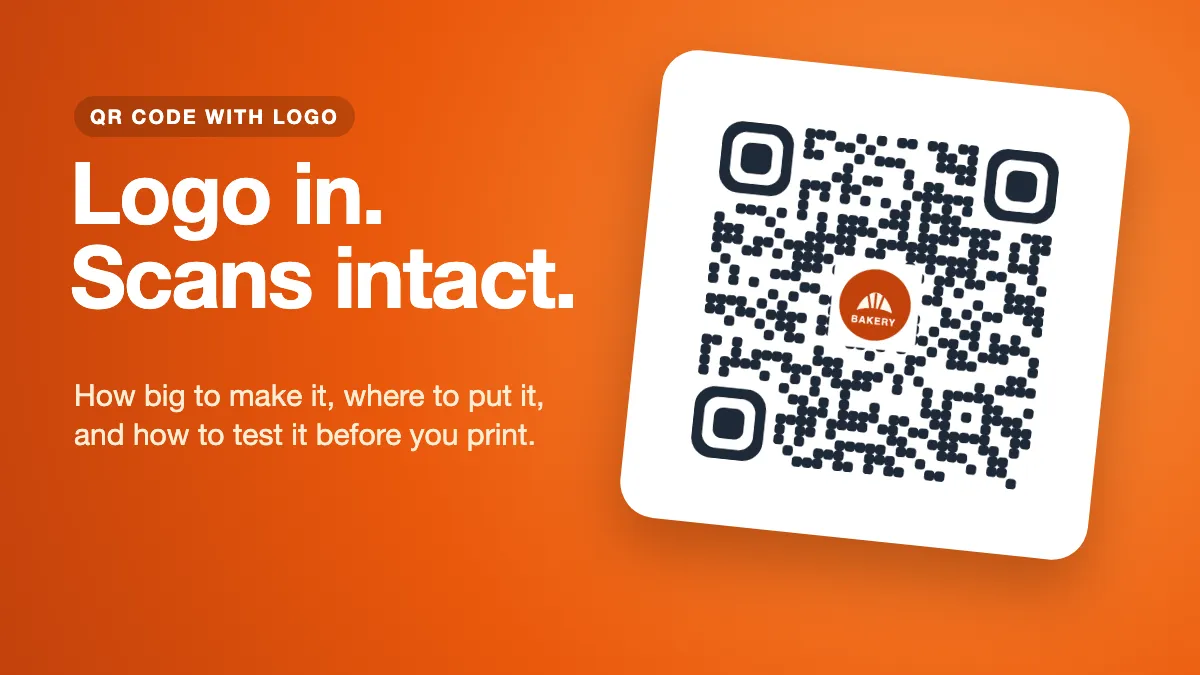
If you're adding a logo or a frame, run this same test with them in place. A design that's safe on its own can still fail when small changes add up, as we found in our logo scan test.
Don't stop at "it scans". Test where it goes, how long it takes, and whether it works on someone else's phone, in bad light, from the real distance.
Step 4: Confirm the test scans in your stats
A dynamic code gives you one more check that a static code can't: proof that the scan went through the redirect. On Dynamic QR Tool, open or reload the code's manage page after your test. Your scans appear in the analytics within a few seconds, together with the time of the last scan.
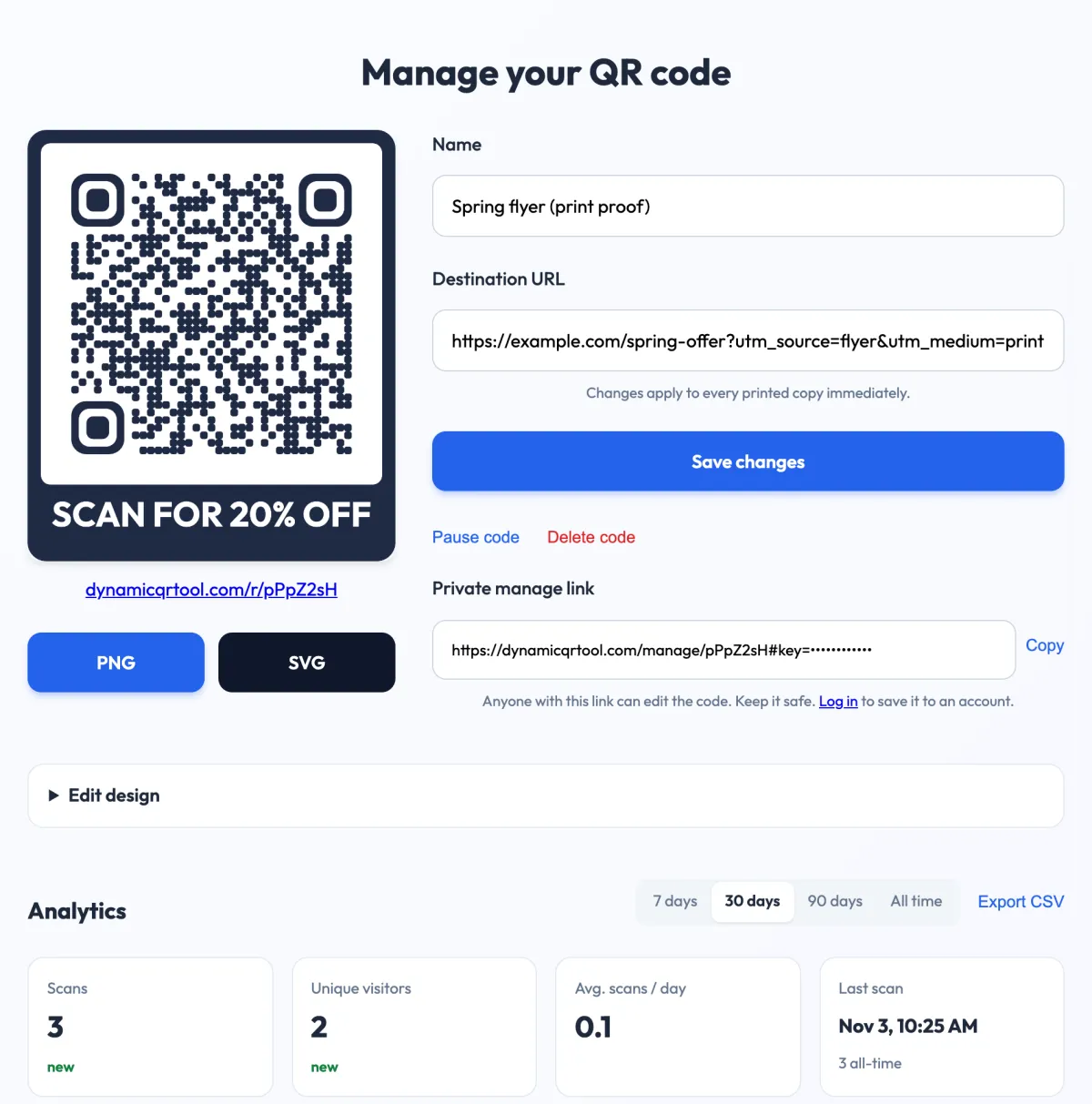
Below that, the breakdown shows which operating systems and browsers the scans came from. It confirms that both your iPhone and Android tests reached the page.
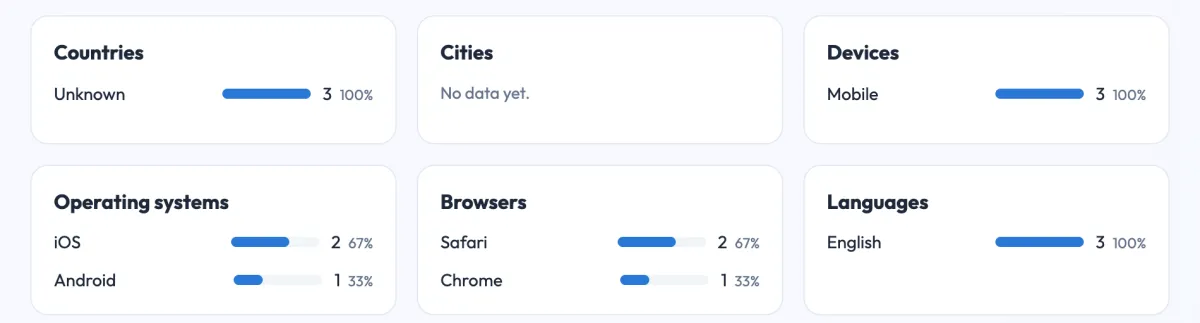
Two things to know when you read these numbers:
- Your test scans count. They're real scans, so they'll stay in the totals. Note how many you made and the date, so you don't mistake them for early interest.
- Link previews aren't counted. Bots and link-preview crawlers are filtered out, so pasting the link into a chat app won't add fake scans.
For more on what each figure means, read how to track QR code scans.
Step 5: Final checks before you approve the print
- Scan the printer's final proof. Printers sometimes resize, convert or re-export artwork. Scan the code in their proof PDF or press proof, not your original file.
- Check finishes. Gloss lamination, foil and varnish can cause glare. If the code sits under a glossy finish, test a sample at an angle under bright light.
- Check folds and trims. Make sure the code doesn't cross a fold line, a perforation or the trim area where a small cutting error could clip it.
- Check the timing. The page must be live before the first copy can be scanned, and the offer must still be valid for as long as the piece will be around.
Extra checks for direct mail and flyers
Some formats have their own traps. For QR codes on direct mail, check the code isn't hidden by an address label, a window envelope, a postage mark or a fold made by the mailing machine. Mail can arrive days or weeks after you send it, so keep the landing page live long after the drop date.
For QR codes on flyers, test a copy pinned to a real noticeboard or held at arm's length, since people rarely hold a flyer close.
After printing: your launch-day scan
When the first copies are out, scan one in the wild. Check the page still loads and that the scan appears in your stats. If you find a problem now, a dynamic code means you can change the link after printing without reprinting anything. That fixes the destination. It can't fix a code that's too small, too pale or covered up, which is exactly why the steps above come first.
Quick answers
Can I test a QR code without a phone?
You can decode a code from an image on a computer, which confirms what link it contains. It doesn't tell you whether it scans on paper, at a distance or in poor light. For that, you need a printed proof and real phones.