You've printed 2,000 flyers and then noticed the link is wrong. Or the menu has changed, the campaign page has moved, or the event has a new venue. Can you change the QR code link after printing? It depends on one thing: whether the printed code is dynamic or static. If it's dynamic, you can fix it in under a minute and nobody will ever know. If it's static, the code itself can't be changed, but you still have better options than reprinting everything straight away. This guide covers both cases, step by step.
First, find out which type of code you printed
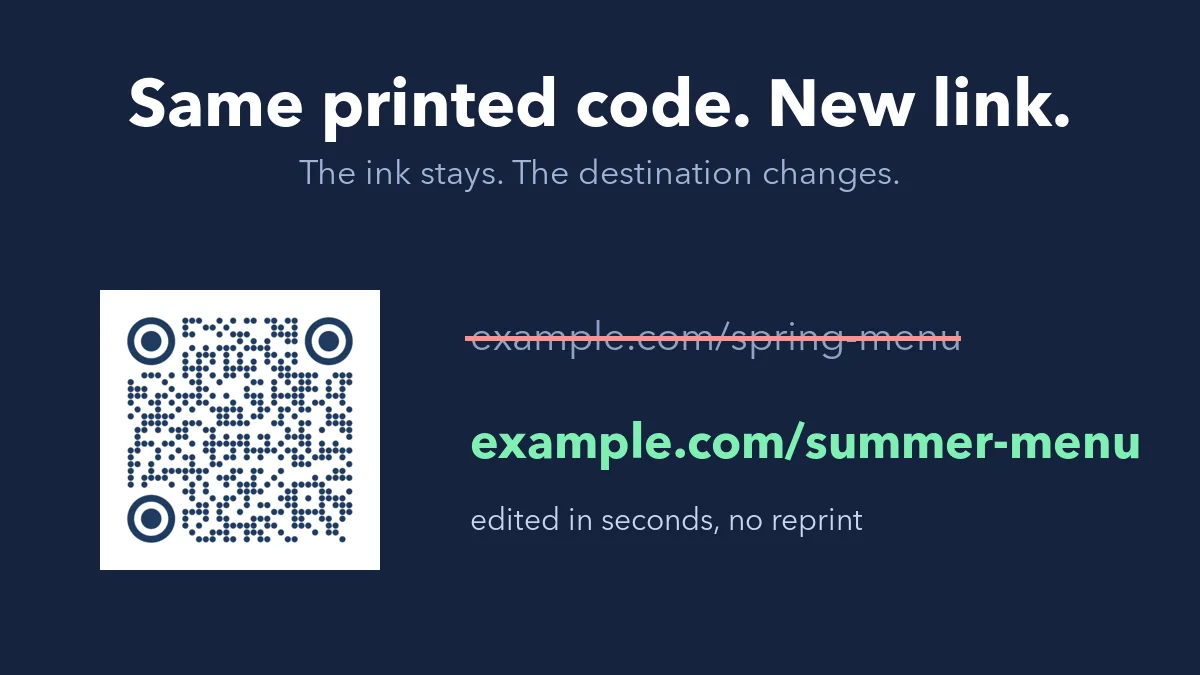
A static code stores your full link in the pattern of squares. Changing the link would mean changing the pattern, and ink doesn't update. A dynamic code stores a short redirect link instead. The pattern always points to that short link, and the short link forwards people to wherever you choose, so only the forwarding step changes. The full explanation is in static vs dynamic QR codes.
To check what you have, scan the code with your phone's camera and look at the link preview before tapping it:
- You see your own website address, such as yourcafe.com/menu. It's almost certainly static.
- You see a short link on a QR service's domain, such as dynamicqrtool.com/r/abc1234. It's dynamic. You need access to the account or manage link on that service.
If your code is dynamic: change the link in under a minute
On Dynamic QR Tool, every dynamic code has a private manage page. Here's the whole process:
- Open your manage link. You received it when you created the code. It's also listed under My QR Codes in the browser you used, or in your account if you were signed in.
- Replace the Destination URL with the new address.
- Click Save changes.
- Scan a printed copy with your phone to confirm it lands on the new page.
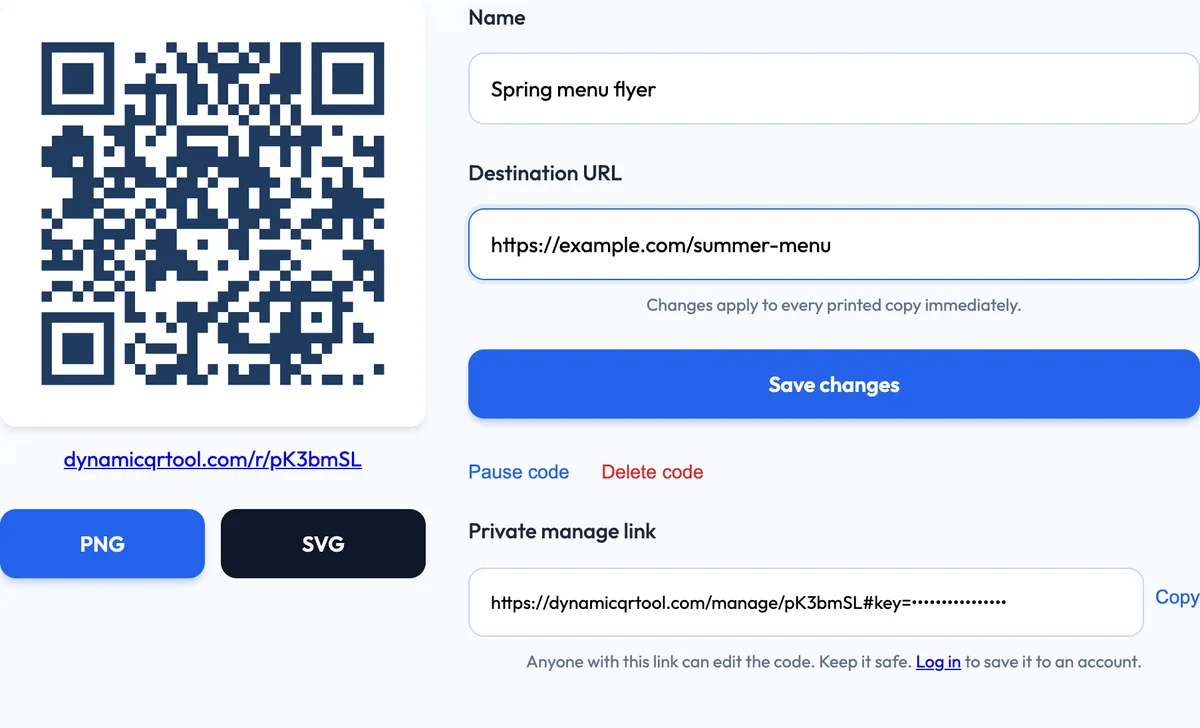
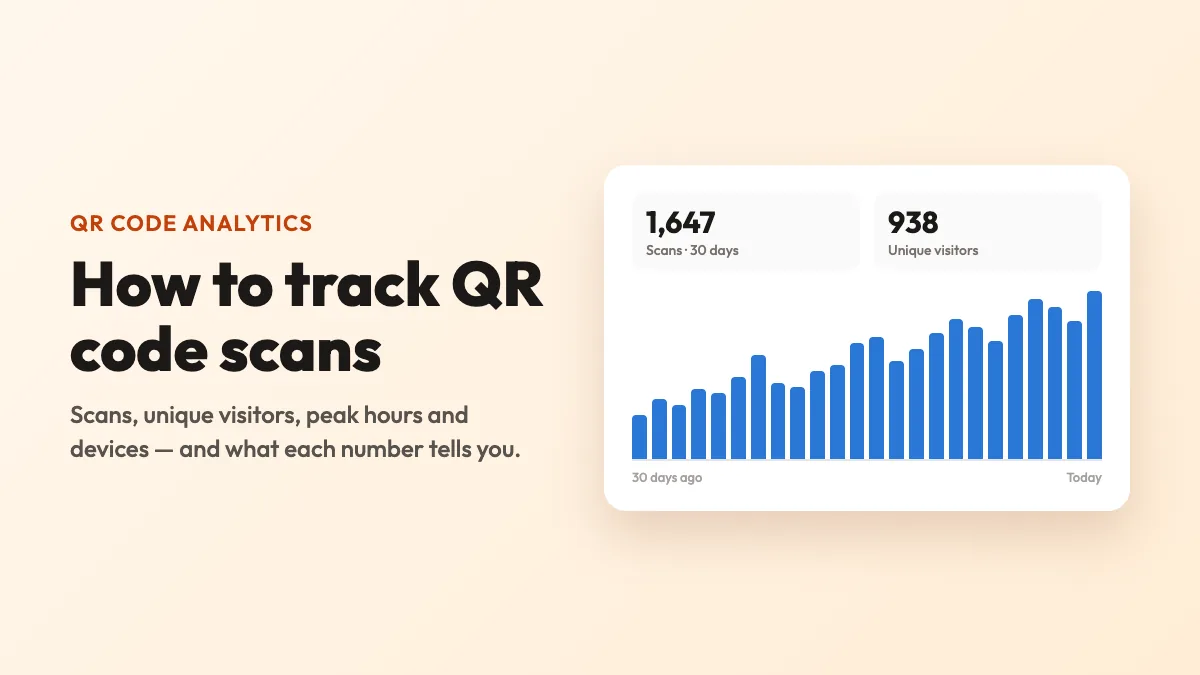
The change applies to every printed copy at once, because they all point to the same short link. The pattern stays the same, and so do your scan statistics, so the history of that flyer carries on.
If you used another QR service
The steps are similar on most services, but check two things before you rely on it. Some "free" generators turn your code off once a trial ends, and some charge to edit it. See do QR codes expire? for what to look out for.
If your code is static: four ways to recover
You can't change the link in a static code. That's what static means, and any tool that claims otherwise is replacing the image, not editing what you've printed. You do still have options, listed here from cheapest to most expensive.
1. Redirect the old URL on your own website
If the code points to a page on a domain you control, this is the best fix by far. Ask whoever manages your website to add a 301 redirect from the old address to the new one. Everyone who scans the printed code will be sent to the right page, and it costs nothing. It works for moved pages, but it can't help if the printed link has a typo in the domain name itself, unless you also own that misspelled domain.
2. Put the old page back
If a page was deleted, restoring it at the same address, even as a simple page with one link to the new content, brings every printed code back to life.
3. Cover the code with stickers
Create a new dynamic code, print it on stickers and cover the old code. This works well for small runs, such as menus, table tents and shop signs. Three details matter:
- Cover the old code completely. A partly visible old code can still confuse a phone's camera.
- Use opaque matte label stock. Thin labels let the old code show through, and glossy ones can catch the light.
- Print at the original size or larger, and test a stuck-on copy before you do the rest.
Since you're replacing the code anyway, make the sticker a dynamic one so this is the last time you have to do it.
4. Reprint
Sometimes this is the right answer: when the run is small, the material is cheap, or the wrong link could cause real harm, such as a payment page or medical information. Use a dynamic code on the new run.
| Your situation | Best fix | Cost |
|---|---|---|
| Dynamic code, you have access | Edit the destination | Free |
| Static code, page moved on your own site | 301 redirect from the old URL | Free or a few minutes of developer time |
| Static code, page deleted | Restore a page at the old address | Free or a few minutes of developer time |
| Static code, typo or a domain you don't own, small run | Stickers with a new dynamic code | Labels and time |
| Static code, typo or a domain you don't own, large run | Reprint with a dynamic code | Full print cost |
Lost the manage link for a dynamic code?
On Dynamic QR Tool, codes created without an account are controlled by the private manage link. Look in My QR Codes in the same browser, and search your notes or emails if you saved it. If you created the code while signed in, it's in your account on any device. The link can't be recovered if it's lost and you weren't signed in, which is why it's worth signing in for any code going to print.
Common reasons to change a code's link
- Seasonal menus. Keep the same restaurant menu QR code on every table and switch the PDF or page whenever the menu changes.
- Finished campaigns. A flyer QR code can move from a launch offer to a general product page after the offer ends, so late scans don't land on an expired promotion.
- Moved websites. If you rebuild your site, just update your codes.
- Typos. A wrong letter in a destination takes seconds to fix.
- Temporary closures. You can pause a code, and people who scan it will see a notice that it's temporarily paused until you turn it back on.
The time to make a QR code editable is before it goes to print. A dynamic code costs nothing extra on a free generator, and it turns an expensive mistake into a one-minute fix.
How to avoid the problem next time
- Use a dynamic code for anything printed. Create one on the free dynamic QR code generator. It works without a sign-up, and there's no expiry or scan limit.
- Point it at a page you expect to last, then change it only when you need to.
- Save the manage link where your team can find it, or sign in so the code stays in your account.
- Give each placement its own code. Then you can change the flyer without changing the poster, and compare scans for each one.
- Test a printed proof with two phones before approving the full run.
Quick answers
Will people notice the link has changed?
No. They scan the same code and arrive at the new page.
Do I need to download the code again after editing it?
Not for a change of destination. The pattern depends on the short link, which stays the same, so your existing files and prints all still work.
Is there a limit on how many times I can change the link?
Dynamic QR Tool doesn't set a limit on edits. Change it as often as you need to.
What happens if I delete the code?
Printed copies stop working. If you only need it off for a while, use pause instead of delete.