A QR code for a PDF is one of the most useful codes you can print. It puts a full manual on a small product label, a 12-page brochure on a poster, or this week's menu on a table card. But a QR code can't hold the PDF itself. It holds a link, and the link opens the PDF. That one detail decides almost everything about doing it well: where the file lives, who can open it, and what happens when you need to change it.
This guide walks through the four steps, the hosting options, and how to replace the PDF later without reprinting a single code.
Why a PDF QR code is really a link
QR codes store a small amount of data: a few thousand characters at most, and far less if you want the code to scan reliably at a sensible size. Even a one-page PDF is hundreds of times bigger than that. So every "PDF QR code" works the same way: you upload the file somewhere on the internet, copy its public link, and put that link in the code. When someone scans it, their phone opens the link and shows the PDF in the browser.
This means you need two things: a place to host the file and a QR code that points to it. Dynamic QR Tool does the second part. It does not host files, so you choose the first part yourself.
Step 1: Host the PDF somewhere public
Pick the option that you already use and that you'll still be using in two years. The code is only as reliable as the link behind it.
| Where to host | Good for | Watch out for |
|---|---|---|
| Your own website | Manuals, menus, price lists; the cleanest link and fastest loading | Website redesigns that move or rename files |
| Google Drive | Quick setup, easy to replace the file | Sharing must be set to "Anyone with the link"; the link opens Drive's preview page |
| Dropbox | Teams that already share files there | The link opens a preview by default; links can break if the file is moved out of the shared folder |
| OneDrive / SharePoint | Organisations on Microsoft 365 | Company policies often block "anyone" links, so test from a phone that isn't signed in |
Whatever you choose, keep the file phone-friendly. Most people will open it on mobile data, standing up. Compress large images, aim for a few megabytes rather than 40, and put the most important information on page one.
Step 2: Get a link that anyone can open
This is where most PDF QR codes fail. The code works for you because you're logged in, but strangers see a "request access" screen.
- Google Drive. Right-click the file, choose Share, and under General access pick "Anyone with the link" with the Viewer role. Google explains the options in its guide to sharing files from Google Drive. Copy the link.
- Dropbox. Create a share link and copy it. If you want the file to download instead of opening a preview, Dropbox explains how to force a link to download (changing
dl=0todl=1). For most PDFs, the preview is the better experience on a phone. - Your website. Upload the PDF and copy its full address, for example
https://example.com/files/espresso-machine-manual.pdf.
Before going further, paste the link into a private or incognito browser window. If it opens the PDF there, it will open for everyone. Don't use a link shortener in between. It adds another service that can break, and Dynamic QR Tool doesn't accept shortened links anyway, because they hide the real destination.
Step 3: Create a dynamic QR code
Open a generator page that matches your use, such as the QR code generator for product manuals, or the main QR code generator. Keep the Dynamic URL tab selected, paste the PDF link as the destination and give the code a name only you will see, like "Espresso machine manual (PDF)".
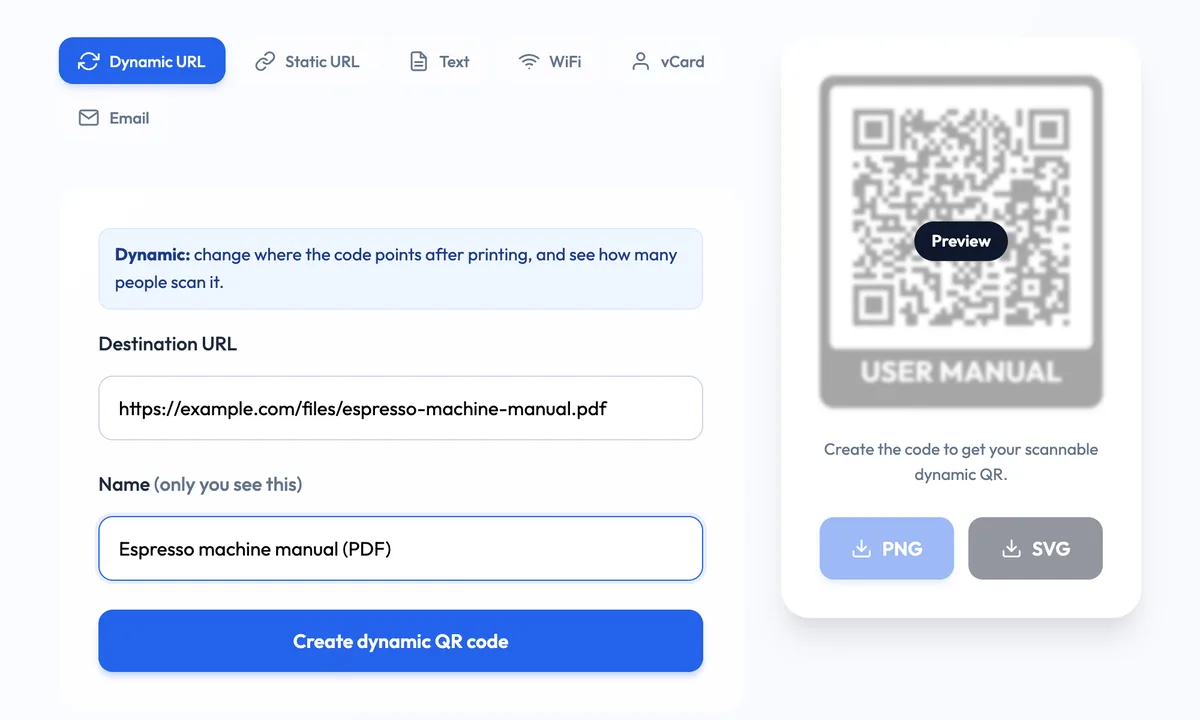
Then style it to fit the print: dot and corner shapes, colours, an optional logo, and a frame with a short call to action such as "USER MANUAL" or "SCAN FOR THE FULL BROCHURE". People scan more when they know what they'll get. Download it as SVG for print work or PNG for documents and slides. Save the manage link the tool gives you, because that is how you edit the code later.
Why dynamic and not static? A static code bakes the PDF link into the pattern forever. If the file moves, gets renamed to menu-v2.pdf, or your Drive sharing changes, every printed code is dead. A dynamic code points to a short redirect that you control, so you can send it to a new link at any time. Dynamic codes on Dynamic QR Tool are free, with no expiry and no scan limit.
Step 4: Test it on real phones before printing
- Scan with two phones, one iPhone and one Android, with the camera app rather than a scanner app.
- Turn Wi-Fi off for one test. A 30 MB PDF that loads fine in the office can take a long time on a weak mobile signal.
- Check it logged out. Use a phone that isn't signed in to your Google or Microsoft account.
- Print a test copy at the real size and scan it from the distance people will actually stand. Our QR code size guide has the numbers.
A PDF QR code is two things that both need to last: a public link to the file, and a code you can point somewhere else when the file changes. Get both right, and the printed code never has to be thrown away.
How to update the PDF later
Sooner or later the PDF changes: a new price list, a corrected manual, next month's menu. There are two ways to handle it.
Option A: keep the same link
Overwrite the file at the same address. On your own website, upload the new file with exactly the same name. On Google Drive, use "Manage versions" to upload a new version of a PDF without changing its link (see Google's help on file versions). The QR code doesn't need to change at all.
Option B: point the code to a new link
If the new file has a different address, open your code's manage page, paste the new link as the destination and save. Everyone who scans the old printed code now gets the new PDF. We cover this in more detail in how to change a QR code link after printing. You can also pause a code if a document is withdrawn, so scanners see a notice instead of outdated information.
Where PDF QR codes work best
- Product manuals and spec sheets. Put the code on the box or the device itself, so the manual is never lost. Start from the product manual QR generator.
- Brochures and catalogues. A small flyer with a code to the full 20-page catalogue saves printing costs. Use the brochure QR code generator.
- Menus. A PDF menu is fine if it's a single, readable page. Make it large text, one column, and update it through the same code every season with the restaurant menu QR generator.
- Forms, safety sheets and price lists on noticeboards, where the document changes but the poster stays up for months.
Common mistakes
- Private sharing settings. The number-one cause of "the QR code doesn't work". Always test logged out.
- Huge files. A PDF full of uncompressed photos can be tens of megabytes. Export a smaller "web" version for the code.
- Tiny text. An A3 poster saved as a PDF is unreadable on a phone. If people need to read it on the spot, make a phone-sized version.
- Linking to a folder instead of the file. Scanners land in a file list and give up.
- No call to action. A bare code on a product label says nothing. "Scan for the manual" tells people why to bother.
Once the code is live, its dashboard shows how many people open the PDF and when, so you'll know whether the manual on the box or the menu on the table is actually being used.
Cover photo: "20240404-FPAC-KLS-2004 EDIT" by USDA, Wikimedia Commons, public domain.