A video explains in two minutes what a page of text can't: how to assemble the shelf, what the exhibit sounds like, how the recipe should look at each step. A QR code for a YouTube video connects the printed thing to that video in one scan. This guide covers which link to copy, how to start the video at the right moment, which privacy setting to use, and how to keep the code working when you upload a better version.
Step 1: Copy the right YouTube link
Open the video, click or tap Share, and copy the link. It will look like https://youtu.be/VIDEO_ID. The longer address from the browser bar, https://www.youtube.com/watch?v=VIDEO_ID, works just as well. YouTube's help page on sharing videos and channels shows where the button is on each device.
Different goals need different links:
| You want people to… | Link to use |
|---|---|
| Watch one video | The video's share link: youtu.be/VIDEO_ID |
| Start at a specific moment | The share link with "Start at" ticked, which adds ?t= plus the number of seconds |
| Watch a series in order | The playlist's share link |
| Watch a Short | The Short's share link (youtube.com/shorts/…) |
| Subscribe or browse | Your channel link, ideally your @handle address |
Don't paste the link from inside a playlist if you only want one video. Those links carry the playlist with them, and the next video plays automatically.
Step 2: Check who can watch it
YouTube has three privacy settings, and only two of them work with a QR code. Google explains them in changing video privacy settings.
- Public. Anyone can find and watch it. Best for marketing, tutorials and anything you want to rank in search.
- Unlisted. Anyone with the link can watch, but it doesn't appear in search or on your channel. This is ideal for a video meant only for people holding your product, your event guests or your students.
- Private. Only people you invite, signed in to their Google account, can watch. A private video behind a QR code shows strangers an error. Don't use it.
Also check age restrictions and "made for kids" settings. Age-restricted videos ask viewers to sign in, which loses a lot of people standing in front of a poster.
Step 3: Create a dynamic QR code
Open the QR code generator for product demo videos (or the main generator for any other use). Keep Dynamic URL selected, paste the YouTube link as the destination, and give the code a name you'll recognise later, like "Blender setup video, box insert".
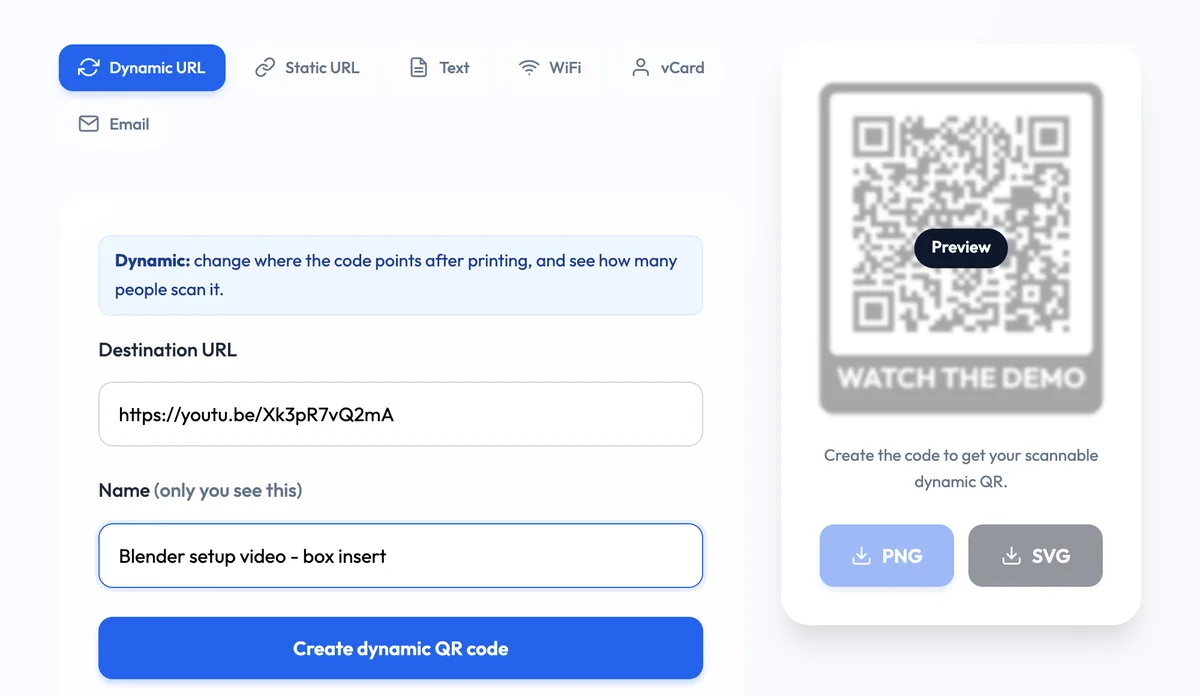
Add a frame with a call to action. People are far more likely to scan when the code says what they'll get: "WATCH THE DEMO", "SEE HOW IT'S MADE", "2-MIN SETUP VIDEO". Telling them the length helps too, because a two-minute video feels like a small commitment. Download SVG for print and PNG for screens, and keep the manage link somewhere safe.
Why dynamic matters more for video
Videos get replaced more than almost any other link. You re-record with better sound, fix a mistake, translate it, or the original gets taken down. With a static code, the YouTube address is printed into the pattern, so every replacement means reprinting. With a dynamic code, you open the manage page, paste the new video link, and every printed code plays the new version straight away. Codes are free, don't expire and have no scan limit.
Step 4: Start at the right moment
A timestamp is one of the most useful tricks for video QR codes. A 20-minute training video might contain the 90 seconds a worker needs at a particular machine. Instead of making a separate video, link to that moment.
- Click Share under the video.
- Tick Start at and set the time, or pause the video at that point first.
- Copy the link. It ends in something like
?t=90.
You can put several codes in different places, each pointing to a different moment in the same video. Test each one, because on some phones the YouTube app opens and on others the browser does, and both should start at the right second.
Point the code at exactly what the person needs at that spot: the right video, the right moment, a privacy setting strangers can open, and a dynamic link you can swap when the video changes.
Where YouTube QR codes work well
- Packaging and manuals. A setup video on the box cuts support calls. Pair it with the written guide on the product demo video page.
- Training materials. Put codes on workstations, checklists and handouts that open the exact procedure video. See the QR code generator for training materials.
- Museums and exhibitions. A short interview with the artist or a demonstration of how an object worked. Visitors use their own headphones. Start from the museum exhibit QR generator.
- Recipes, menus and shop windows. "See how it's made" next to a dish or product.
- Presentations and classrooms. Put a code on the last slide so people can rewatch the clip later.
Testing and printing tips
- Test on two phones: one with the YouTube app installed and one without. The video should play either way.
- Test logged out to make sure an unlisted video plays for strangers.
- Think about sound. In museums, shops and trains, people often watch muted. Turn on captions for the video, so it still makes sense without sound.
- Size the code for the distance. On a box, 2 to 3 cm is fine. On a poster read from a few metres away, it needs to be much bigger. Our QR code size guide has a simple rule.
- Keep good contrast. Dark code on a light background, with a clear margin around it.
Measuring scans vs views
YouTube Analytics shows how many people watched, but not which views came from your printed code. The QR code's own dashboard fills that gap: total scans and unique visitors, when people scan by day and hour, plus countries, devices and browsers. If you print several codes to the same video (on the box, in the manual, on a poster), make a separate dynamic code for each placement, so you can see which one people actually use. We explain the numbers in how to track QR code scans.
Common mistakes
- A private video. It works for you, and nobody else.
- Linking to the channel when you meant one video. People land on a grid of thumbnails and leave.
- A playlist link by accident, so the next video autoplays.
- No call to action, or one that doesn't say it's a video.
- A static code on long-lived print. When the video is replaced or removed, the code is dead.
Cover photo: "Child plays on smartphone while sitting on a couch…" by Shixart1985, Wikimedia Commons, CC BY 2.0.