"What's the WiFi password?" is probably the most asked question in every hotel, café, office reception and holiday rental. Typing a 16-character password with capitals and symbols on a phone keyboard is no fun either. A WiFi QR code fixes both: guests point their camera at it, tap "Join", and they're online. No spelling out passwords, no "is that a zero or an O?". This guide shows what to enter, how phones handle the code, where to put it, and the one big difference between WiFi codes and other QR codes.
How a WiFi QR code works
Unlike most QR codes, a WiFi code doesn't open a website. It holds the network details in a small standard text format, something like WIFI:T:WPA;S:Harbor View Guest;P:sunrise-2741;;. When a phone's camera reads it, the phone recognises the format and offers to join that network. The format is documented in the ZXing barcode contents reference, the open-source library behind many scanners.
Current iPhones and Android phones can join a network from a WiFi code using the built-in camera, without a separate app. Google's help page on connecting to WiFi on Android covers the Android side, including sharing a network as a QR code from your own phone.
Step by step: make a guest WiFi QR code
- Open the WiFi generator. Go to the QR code generator or a hospitality page like the hotel guest information QR generator, and choose the WiFi tab.
- Enter the network name (SSID) exactly as it appears in the WiFi list, including capitals and spaces. "Harbor View Guest" and "harbor view guest" are different networks.
- Choose the encryption. WPA/WPA2 is right for almost every modern router. Use "No password" only for an open network. Avoid WEP. It's outdated and insecure.
- Enter the password, again exactly. Copy it from the router settings if you can, rather than retyping it.
- Tick "Hidden network" only if your network doesn't broadcast its name.
- Style and download. Add a frame with a clear label such as "SCAN FOR WI-FI", then download PNG for a printed card or SVG for larger signs.
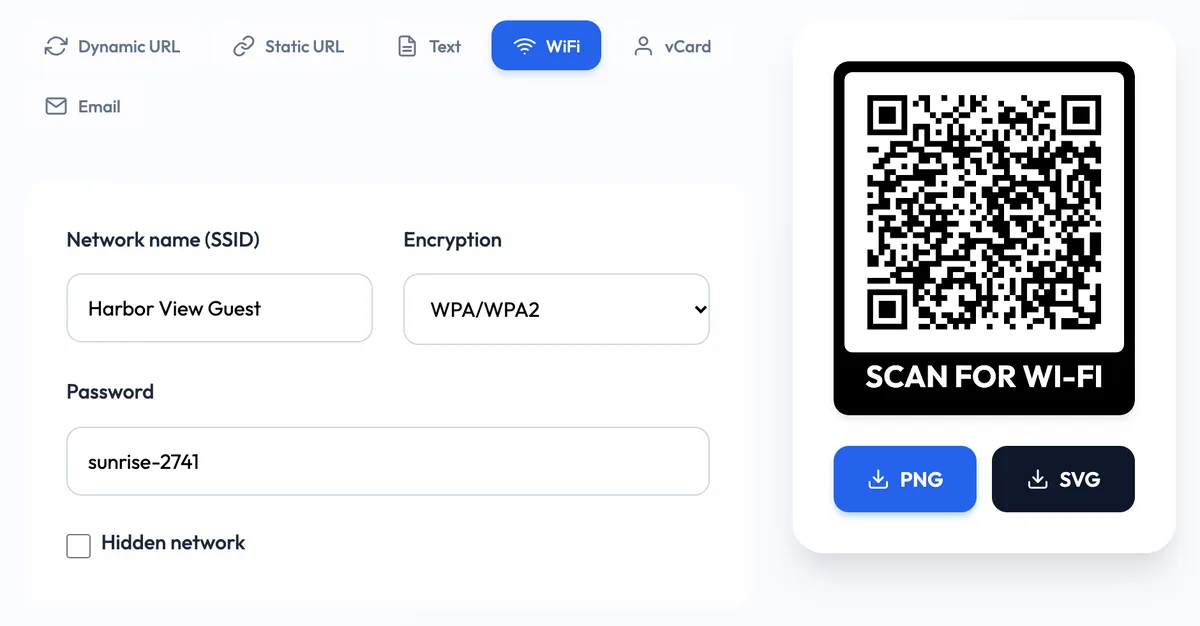
The code is created right in your browser. Test it straight away: scan it from the screen with a phone that has never joined that network (or "forget" the network first) and make sure it connects.
The important part: WiFi QR codes are static
Because the phone needs the network name and password inside the code itself, a WiFi QR code is always static. It can't be a dynamic, editable code, and it has no scan statistics. That has one big consequence:
If you change the WiFi password, every printed WiFi QR code stops working. Plan for that before you print 40 table cards.
A few ways to handle it:
- Keep a stable guest network. Create a separate guest network with its own password that you don't change often. Your private network can change as often as you like.
- Print cheaply and close to where you change it. A card in a stand or a laminated sign is easy to swap. Avoid engraving or printing the code on menus and wallpaper.
- Use a dynamic code for everything around the WiFi. Put the static WiFi code next to a dynamic "Guest info" code that opens a page with house rules, check-out time, a local guide and, if you like, the current password in text. That page can be updated from the front desk at any time, and its code shows how many guests use it. This is the approach behind the guest information use case.
Where to put a guest WiFi QR code
- Hotels and holiday rentals. On the desk or bedside table in each room, in the welcome folder, and near the lift. Guests look for the WiFi within minutes of arriving.
- Cafés and restaurants. On table stands or the counter, not on the menu itself, so a password change doesn't mean reprinting menus.
- Offices and reception areas. At reception and in meeting rooms for visitors. Pair it with a visitor sign-in QR code, so guests check in and get online at the same desk.
- Events and conferences. On badges, lanyard cards and session room doors.
- At home. A small framed code on the fridge saves you reading out the password to every visitor.
Print tips
- Size. On a table card read from arm's length, about 3 to 4 cm is enough. On a wall sign read from a few metres away, go much bigger. Our QR code size guide explains the rule of thumb.
- Contrast. Dark code on a light background, with a clear margin around it. Avoid placing it on glossy or reflective surfaces directly under lights.
- Add the details in text as well. Print the network name and password under the code for laptops and older devices that can't scan. Guests will thank you.
- Label it clearly. "Scan to join our WiFi" removes any doubt about what the code does.
- Test the printed version with both an iPhone and an Android phone before printing in bulk.
Security: what to share and what not to
Anyone who can see the code can join the network, so treat the code exactly like the password written on a sign. That's fine for a guest network, and it's the whole point. But:
- Never put your main or staff network in a public code. Use a separate guest network, ideally isolated from your office devices, tills and printers.
- Don't post a photo of the code online unless you want strangers to be able to join.
- Check codes in public places now and then. Someone could stick a different code over yours. We cover this in QR code security.
Troubleshooting
| Problem | Likely cause | Fix |
|---|---|---|
| Phone scans, but can't connect | Wrong password or a typo in the network name | Copy both exactly from the router settings and regenerate |
| Nothing happens when scanning | Code too small, glare, or poor contrast | Print it larger, matt finish, dark on light |
| Worked last month, not now | The WiFi password was changed | Make a new code and replace every printed copy |
| Joins, but no internet | Network or router problem, not the code | Check the connection on a device that joined manually |
A WiFi QR code takes a minute to make and saves your staff from reading out passwords all day. Keep the guest network stable, print the code where guests look first, and use a dynamic code beside it for everything that changes.
Cover photo: "Vroeger was alles beter, behalve de WiFi" sign at the Plaswijckpark, Rotterdam, by Donald Trung Quoc Don, Wikimedia Commons, CC BY-SA 4.0.