You want people to download your app, and you have one spot on the packaging, poster or table tent for a code. The catch: iPhone users need the App Store and Android users need Google Play. Printing two codes side by side works, but it's cluttered and half the people scan the wrong one. A single QR code for app download that sends each phone to the right store is cleaner. This guide shows how to set that up, what links to use, and how to see whether your audience is mostly iPhone or Android.
Three ways to handle two app stores
| Option | How it works | Good for |
|---|---|---|
| Two codes | One code to the App Store, one to Google Play, each labelled | Quick and simple, but takes space and confuses people |
| One code to a download page | The code opens a page on your site with both store badges | Works everywhere, easy to build, one extra tap |
| One code to a smart link | A link on your site detects the phone and redirects to the right store | Smoothest experience; needs a small bit of web setup |
For most businesses, the best combination is a dynamic QR code pointing to a smart link or download page on your own website. The code stays the same forever, and you control where it goes.
Step 1: get your store links
- App Store: the link looks like https://apps.apple.com/app/id followed by your app's number. Find it in App Store Connect or by sharing the app from the App Store.
- Google Play: the link looks like https://play.google.com/store/apps/details?id= followed by your package name (for example com.example.app). Google documents the formats in Linking to Google Play.
Open both on a real phone to check they go to the right app, in the right country store.
Step 2: build a download page or smart link
The download page
Create a simple page on your site, such as example.com/get-the-app, with:
- The official store badges, "Download on the App Store" and "Get it on Google Play", linked to your store pages. Use the badges as provided in Apple's marketing guidelines and Google Play's brand guidelines.
- One line on what the app does and why it's worth installing now (a discount, a loyalty stamp, faster ordering).
- A fallback for desktop visitors: "Scan this page on your phone" or an email-me-the-link option.
The smart link
A smart link is the same page with a small rule added by your web developer: if the visitor's device is an iPhone or iPad, redirect to the App Store; if it's Android, redirect to Google Play; otherwise, show the page with both badges. Many app teams already have one on their website. If yours does, use it as the destination.
Dynamic QR Tool itself doesn't split traffic by device: one code has one destination. That's why the device rule lives on your page, while the code just points there. The bonus is that you can update the page any time without touching the code.
Step 3: create the QR code
- Open the product packaging QR code generator, the poster QR code generator, or the home page generator.
- Paste your download page or smart link URL. Paste the full address, not a shortened link; link shorteners aren't accepted as destinations.
- Name it after where it will appear ("App download, packaging insert"), so you can tell codes apart later.
- Set the frame label to GET THE APP or SCAN TO DOWNLOAD.
- Create the code, save the manage link, and download SVG for print.
- Test on an iPhone and an Android phone. Each should land on its own store, or on your page with both badges.
Point the QR code at a page you own, not straight at a store. Store links change when apps are renamed, split or moved to a new developer account, but your page and your dynamic code can stay the same for years.
Step 4: see who scans, iPhone or Android
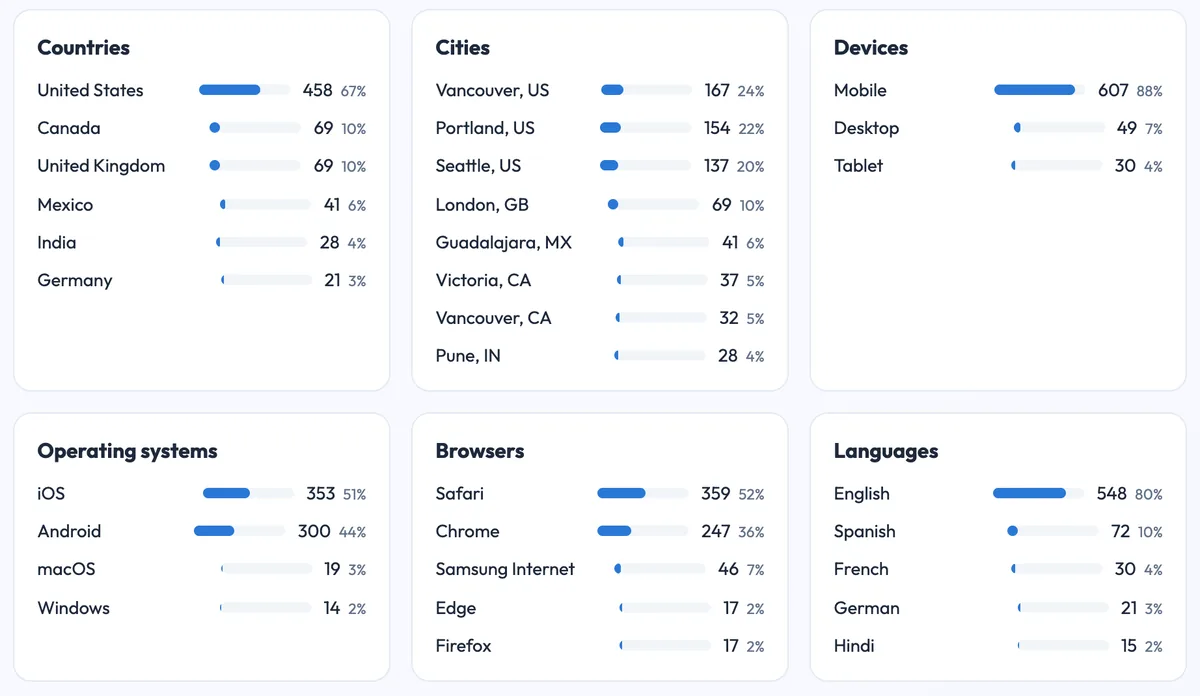
A dynamic code's analytics show the operating system of each scan, so you see how your audience splits between iPhone and Android. That helps you decide where to spend effort: which store listing to polish first, which platform to test new features on, and whether your packaging reaches the audience you expected.
Scans aren't installs, of course. To measure installs, use each store's own campaign tools: App Store Connect supports campaign links, and Google Play supports referrer parameters. If you also send people to your website, add UTM tags to the link, as explained in our guide to UTM parameters with QR codes. For a refresher on reading the numbers, see how to track QR code scans.
Where app download codes work best
- Product packaging and inserts. People have the product in hand and a reason to open the app (setup, recipes, warranty). See the packaging QR code guide.
- Restaurant tables and counters. "Order and pay from the app next time" with a first-order discount.
- Posters and shop windows. Keep it short: one benefit and the code.
- Receipts and delivery bags. The customer just bought something, so a loyalty app pitch is relevant.
- Event signs. When the event app has the schedule and maps, put the code everywhere people queue.
Common mistakes
- Linking straight to one store. Half your audience lands on a store their phone can't use.
- No reason to download. "Download our app" is weak. "Get 10% off your first order in the app" gives people a reason to scan.
- A slow download page. Keep it light; people scan on mobile data.
- Forgetting desktop and tablets. Some people scan with a tablet or open the link later on a laptop. Show both badges as the fallback.
- Not testing after app updates. If the app moves to a new listing, update your page or the code's destination, then scan both again.
Quick checklist
- Collect your App Store and Google Play links and check them on real phones.
- Build a download page or smart link on your own site.
- Create a dynamic code pointing to it, with a "GET THE APP" label.
- Test on iPhone, Android and a desktop browser.
- Check the OS split in the analytics after the first week.
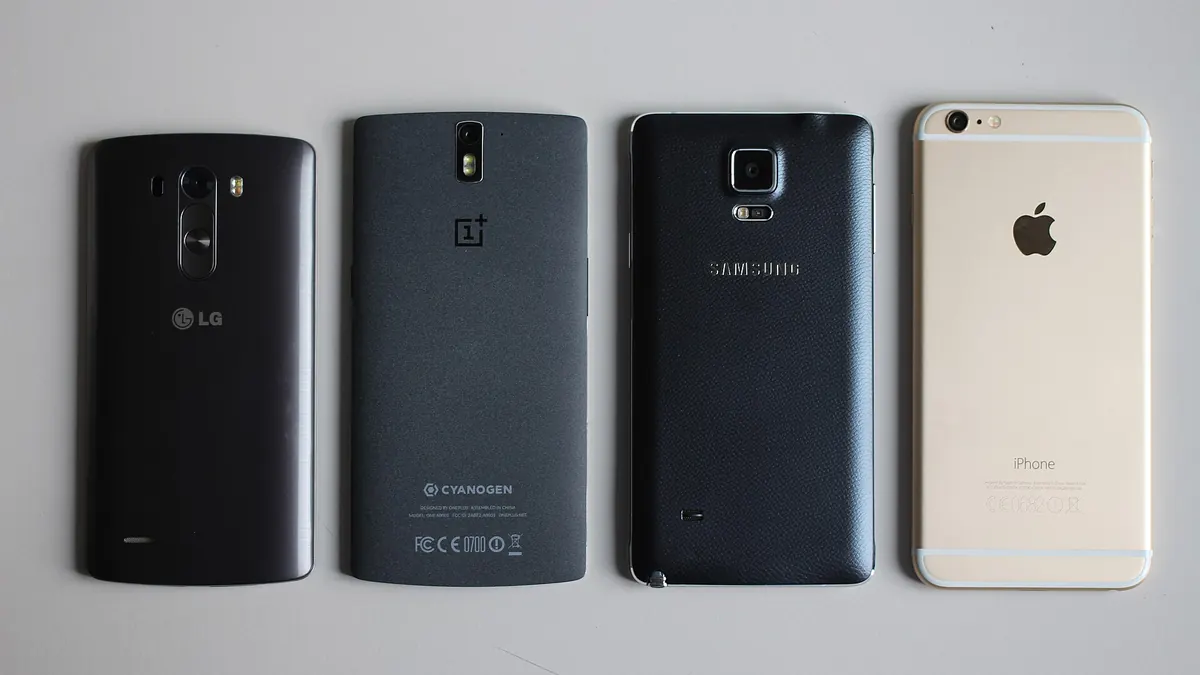
Cover photo: "Smartphones back" by Maurizio Pesce, CC BY 2.0, via Wikimedia Commons.