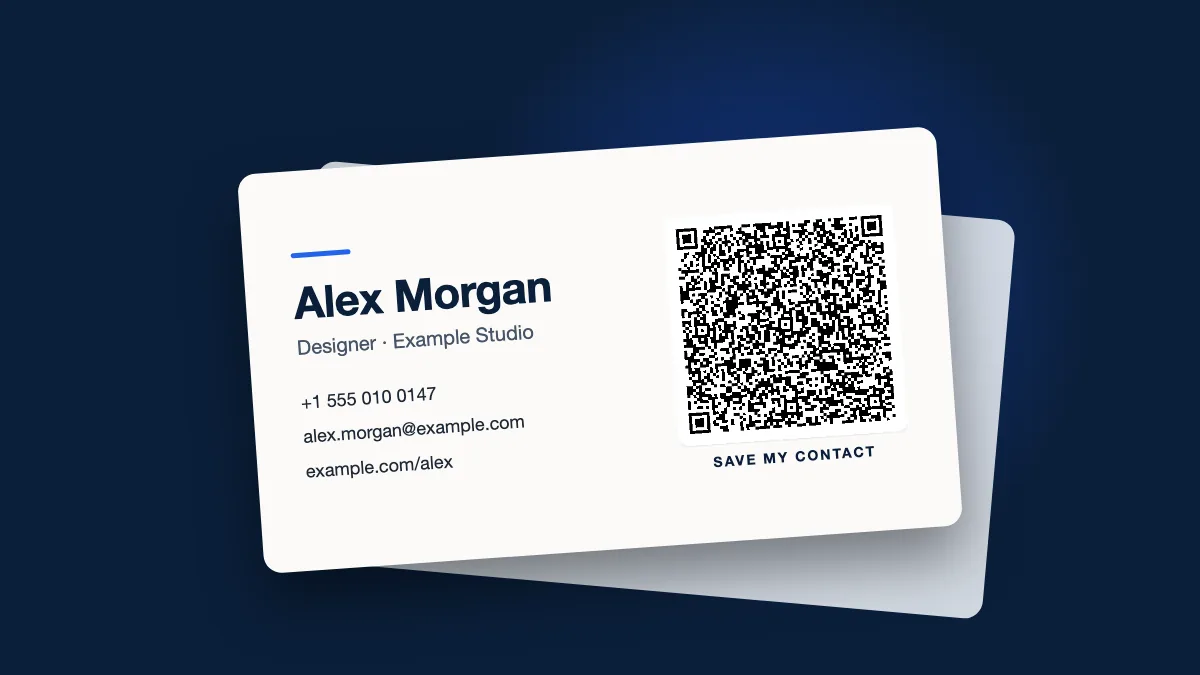
You hand someone your business card, they say "I'll add you", and the card goes into a pocket never to be typed in. A vCard QR code removes that step. The person scans the code, their phone shows a contact card with your name, number, email and website already filled in, and one tap saves it. This guide explains how vCard codes work, what to put in one, how to keep it scannable on a small card, and when a different kind of code is the better choice.
What a vCard QR code is
vCard is the standard file format phones and email apps use to exchange contacts (the same thing as a .vcf file). A vCard QR code simply stores that contact text inside the code. When the camera reads it, the phone recognises the format and offers to add a new contact. No website, no app and no internet connection is needed for the contact to save.
A typical vCard looks like this inside the code: a start line, your name split into first and last, your company, a mobile number, an email address, a website, and an end line. That is why the format is reliable. Every modern iPhone and Android camera understands it, and the result lands in the phone's normal Contacts app.
How to make a vCard QR code
- Open the generator on the Dynamic QR Tool home page and choose the vCard tab.
- Fill in the fields: first name, last name, mobile phone, email, company and website. Leave out anything you don't want strangers to have.
- Check the preview. The code updates as you type. Scan it with your own phone and look at the contact card it creates.
- Style it lightly if you like (dot and corner style, colours), keeping it dark on a light background.
- Download PNG or SVG. Use SVG for print, so the code stays sharp at any size.
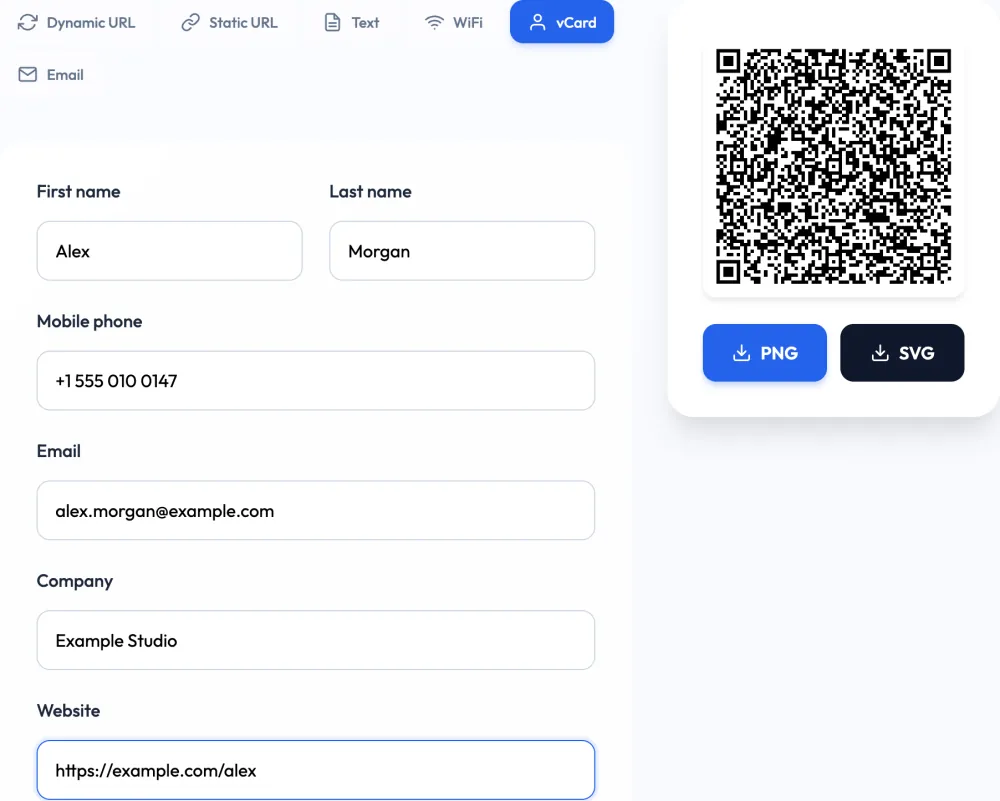
The vCard code is generated entirely in your browser. Your details are encoded into the image on your device and are not sent to the server, which is worth knowing when the data is a personal phone number.
What to include (and what to leave out)
- Name, split correctly. First name and last name in the right fields, so the contact sorts properly in the recipient's phone.
- Phone in international format. Write +44 20 7946 0000 rather than 020 7946 0000. The country code makes the number work for people who live abroad or save it while travelling.
- One email. The address you actually want people to use, not every address you have.
- Company and website. They help the person remember who you are in six months' time.
- Skip the extras. Every character you add makes the code denser. Social handles, a second phone and a long address push a small code toward being hard to scan.
A vCard code is permanent: whatever you put in it is printed for the life of the card. Include only details you expect to keep for as long as you'll be handing those cards out.
Keep it scannable on a small card
A business card is a tough place for a QR code. The card is small, people scan it at arm's length, often in dim light at an event. A vCard makes this harder because it stores far more text than a web address. More text means more modules (the small squares), and more modules at the same printed size means each square is tinier.
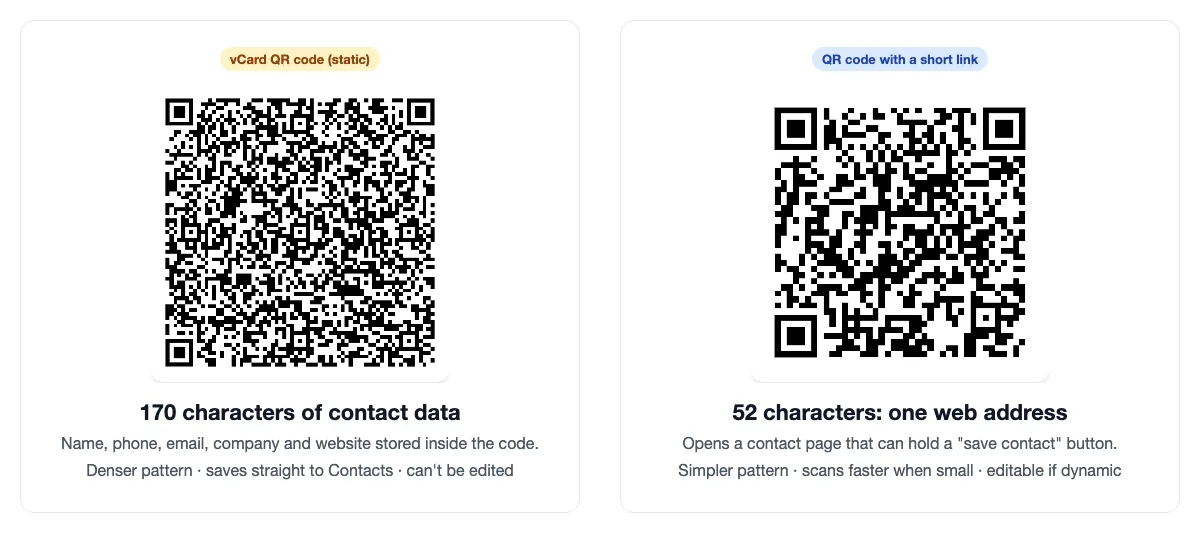
The comparison above uses the same generator for both codes. The vCard holds 170 characters and has a visibly finer grid than the code holding a single web address. Practical rules:
- Print it at least about 2.5 cm (1 inch) wide on the card, and bigger if you added many fields. Our QR code size guide explains how to work out the right size.
- Keep the quiet zone, the empty margin around the code. Don't let card borders or text touch it.
- Use strong contrast: a dark code on a light card. Metallic foil, gloss over a pale colour, and light-on-dark designs fail more often.
- Test a printed proof on two or three different phones before ordering the full box. See how to test a QR code before printing.
vCard code or link code: which should you use?
A vCard code is static: the details can't be changed after printing and there is no record of how many people scanned it. The alternative is a QR code that opens a contact page you control, such as a personal site or a simple profile page with a "save contact" button that downloads your .vcf file. If that link is a dynamic code, you can repoint it later and see scan statistics.
| vCard QR code | Dynamic code to a contact page | |
|---|---|---|
| What happens on scan | Phone offers to save the contact straight away | Phone opens your page; saving is one more tap |
| Works offline | Yes | No, the page needs a connection |
| Edit after printing | No, reprint the cards | Yes, change the destination |
| Scan statistics | None | Scans, unique visitors, devices, countries |
| Code density | High, grows with every field | Low, always one short link |
| Best for | Stable details, quick networking | Details that change, portfolios, booking links |
A simple way to decide: if you change jobs, phone numbers or websites more often than you reorder cards, use a dynamic code. Our business card QR code generator creates one for free, with a "SAVE MY CONTACT" frame label preset. The full trade-offs are covered in static vs dynamic QR codes.
Other places a contact QR code works
- Conference and event badges. Attendees can swap contacts by scanning each other's badges. Use a link code here if the organiser wants to see how much networking happened; the QR code for conference badges page shows how.
- Email signatures and slides. A small code on your last slide lets a whole room save your details while you take questions.
- Shop counters and service vans. A code that saves the business number means customers can find you when something breaks next year.
- Name tags for staff. Useful for sales teams at trade shows, where each person has their own card.
Common mistakes
- Too much data. Five phone numbers and a full postal address create a code that only scans when large. Trim it.
- Personal details on a work card. The code is easy to copy. Use the work mobile and work email.
- No label. Many people still don't know a code can save a contact. A short line such as "Scan to save my contact" next to it helps.
- Printing before testing. A typo in an email address inside the code is invisible until someone writes to you and it bounces.
- Using a vCard when your details are about to change. If a move or new role is coming, choose a dynamic code now.
Quick checklist
- Choose vCard (fixed details, offline) or a dynamic link (editable, tracked).
- Fill in only the fields you need, phone in international format.
- Download SVG and print at least about 2.5 cm wide with a clear margin.
- Add "Scan to save my contact" next to the code.
- Test a printed proof on several phones, then order the full run.