"How do I get there?" is the first question guests ask about any event, open house or new office. A QR code for Google Maps answers it before they ask: they scan the code on the invitation, flyer or sign, and their phone opens directions to the exact entrance. This guide shows which Google Maps link to put in the code (it matters more than you'd think), how to choose walking or driving directions, and why a dynamic code saves you when the location changes.
Step 1: get the right Google Maps link
There are three kinds of Google Maps link, and they do different things when scanned:
| Link type | Example | What the scanner sees |
|---|---|---|
| Share link | maps.app.goo.gl/… | The place card; they tap Directions |
| Place or search link | google.com/maps/search/?api=1&query=… | The place on the map; they tap Directions |
| Directions link | google.com/maps/dir/?api=1&destination=… | Route from where they are, ready to start |
For most uses the directions link is best, because it saves a tap and starts from the person's current location. Google documents this format as Maps URLs, and it works without any API key.
Build a directions link
Start with this address and add your destination:
https://www.google.com/maps/dir/?api=1&destination=your destination
- destination can be an address ("10 Downing Street, London"), a place name, or latitude and longitude ("51.5034,-0.1276"). Replace spaces with + or %20.
- travelmode (optional) can be driving, walking, bicycling or transit. Add &travelmode=walking for a campus or a city-centre venue.
- origin (optional) sets the starting point. Usually you leave it out, so the route starts from wherever the person is.
Tip for exact entrances: addresses often point at the middle of a building. If guests should use a side door or a car park, open Google Maps, long-press the exact spot, copy the coordinates it shows, and use them as the destination.
Step 2: why the "Share" short link doesn't work here
The quickest way to copy a location is the Share button in Google Maps, which gives you a short maps.app.goo.gl link. It's fine for a static QR code, but Dynamic QR Tool doesn't accept link shorteners as the destination of a dynamic code, because a redirect chain hides where a code really goes (a common trick in QR phishing).
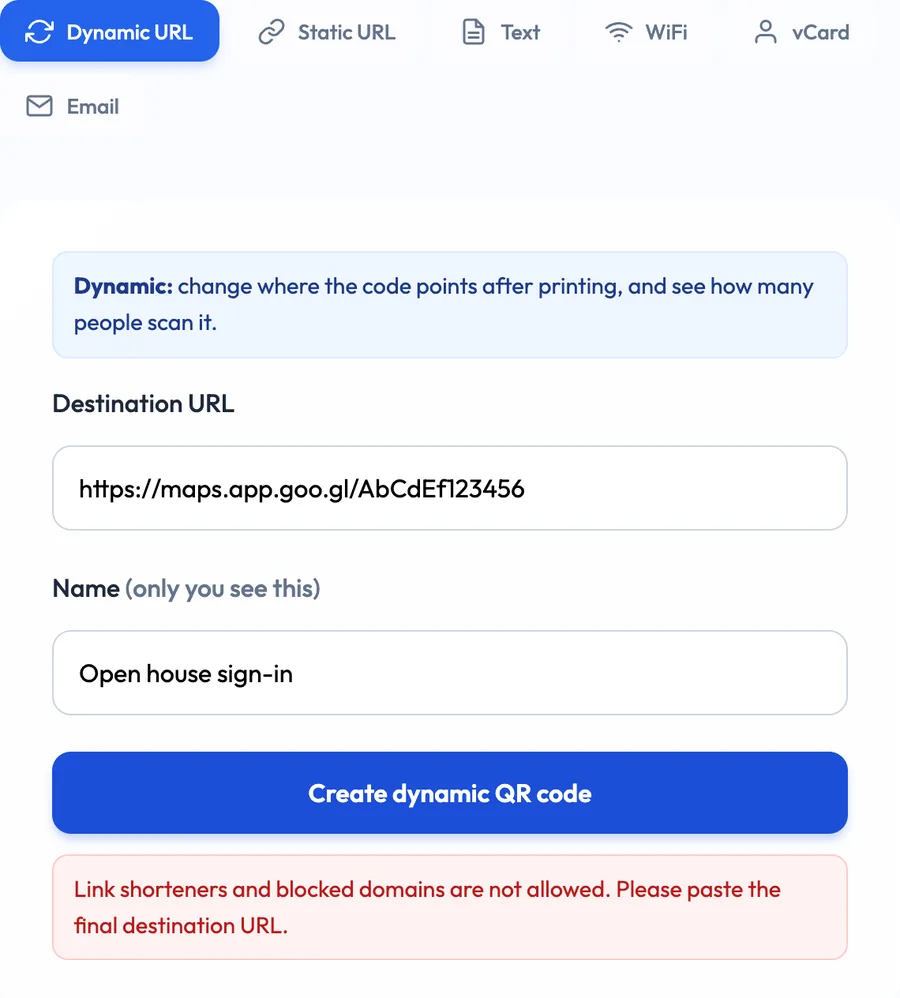
The fix takes ten seconds: paste the short link into your browser, let it open, and copy the full google.com/maps/… address from the address bar. Or skip the share link and build the directions link from Step 1, which is better anyway.
Step 3: create the QR code
- Pick a generator page that fits your use: the open house QR code, the event schedule QR code or the campus map QR code each come with a frame label preset you can edit. The home page generator works for anything else.
- Paste your directions link into the Destination URL field and give the code a name only you see, such as "Open house, 14 Elm Road".
- Click Create dynamic QR code and save the private manage link. That's how you edit the destination later.
- Add a clear call to action in the frame: "SCAN FOR DIRECTIONS" tells people exactly what they'll get.
- Download SVG for print or PNG for screens and emails.
- Test it on an iPhone and an Android phone, ideally from a different street, to check the route makes sense. See how to test a QR code before printing.
Locations change more than you expect: a car park closes, an event moves to a bigger hall, the open house moves to the next street. With a dynamic code you update the link, and every printed flyer points to the new place.
Static or dynamic for a map code?
A static QR code stores the map link itself. It's free, works forever, and is fine for a permanent address that will never change, like a shop sign. A dynamic code stores a short redirect you control, so you can:
- Change the destination after printing when the venue, entrance or parking changes. Our guide on changing a QR code link after printing walks through it.
- See how many people scanned, by day and by hour, which tells you whether the directions were actually used.
- Pause the code after the event so old flyers don't send people to an empty venue, or point it to a "this event has ended" page.
Where to put a directions QR code
- Invitations and tickets. The most-used spot. Guests scan it at home while planning the trip.
- Open house signs and real estate flyers. Buyers who drive past can save the route back.
- Event schedules. For multi-venue events, one code per venue or session location.
- Campus and office maps. Point to the building entrance, with walking directions.
- Reception and confirmation emails. On a phone, people tap rather than scan, so include the link too.
- Delivery and pickup notes. A code that leads straight to the loading dock saves phone calls.
For placement and size advice, see where to put a QR code.
Common mistakes
- Linking to the search results page instead of a place or directions link, so scanners see a list of similar places.
- Using the city centre instead of the entrance. Big venues have several entrances; send people to the right one.
- Forgetting the travel mode. Driving directions to a pedestrian campus can send guests to a service road.
- No label. A bare code on an invitation could be anything. "Scan for directions" makes it obvious.
- Not testing from outside. A route tested from inside the building always looks fine.
What about Apple Maps?
Google Maps links work on iPhones too: they open in the Google Maps app if it's installed, otherwise in the browser. If most of your audience uses iPhones and you prefer Apple Maps, Apple has its own map link format. You can't send one code to both apps, so for mixed audiences Google Maps is the safer choice.
Quick checklist
- Build a directions link with the exact entrance as the destination.
- Add a travel mode if walking or transit fits better than driving.
- Paste the full google.com/maps link (not maps.app.goo.gl) into a dynamic code.
- Label it "Scan for directions".
- Test on two phones from outside the venue, then print.
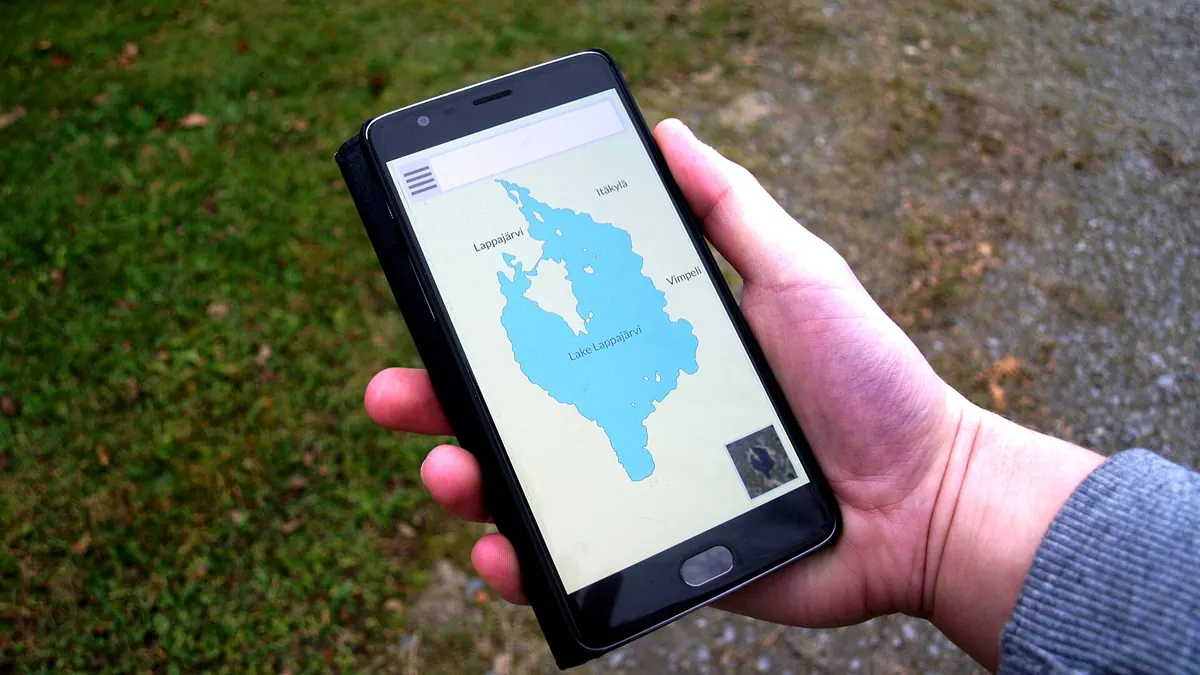
Cover photo: "Smartphone with navigation map app" by Santeri Viinamäki, CC BY-SA 4.0, via Wikimedia Commons.